> ## Documentation Index
> Fetch the complete documentation index at: https://docs.crossmint.com/llms.txt
> Use this file to discover all available pages before exploring further.
# How Agent Checkouts Works
> Who does what in an agent checkout, how the checkout asks your app for answers, and what each status means
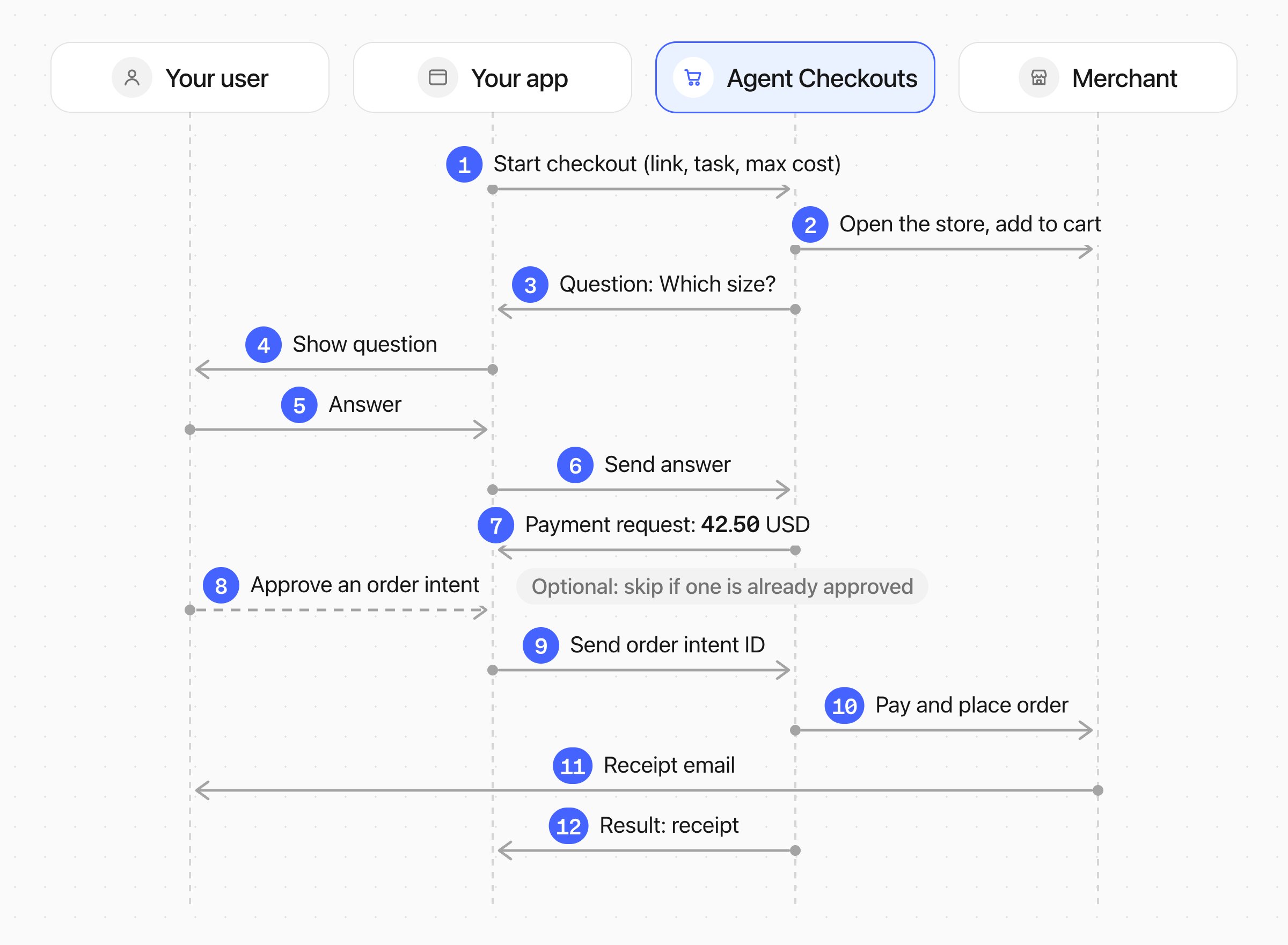
 An agent checkout is a conversation between your app and Crossmint. Agent Checkouts does the work at the merchant: it finds the products, builds the cart, and checks out. Your app does the work with your user: it shows the questions, sends the answers, and gets the user's approval to pay.
## Who Does What
| Part | What it does |
| - | - |
| Your app | Starts the checkout, shows each question to the user, sends the answers, and sends an order intent ID to pay. |
| Your user | Answers the questions, and approves an order intent: during the checkout, or before it. |
| Agent Checkouts | Opens the merchant's website, finds the products, builds the cart, asks for what it does not know, and checks out with the payment method that your app gives. |
| Merchant | Sells to your user as the merchant of record, sends the receipt, and handles returns. |
A simple integration needs no agent at all: a page that starts the checkout and shows its questions is enough.
## A Tool for Your Agent
When you have an agent, use Agent Checkouts as a subagent or a tool, not as the agent that talks to your user. Your agent keeps the conversation with the user. When the checkout needs something, it sends your agent a structured question with typed fields. Your agent decides how to answer it:
| Your agent | When |
| - | - |
| Answers at once, with no question to the user | It already knows the value, for example the user's email or shipping address. |
| Asks the user in its own words, and puts the reply in the fields | The answer is a simple value, such as a size or a delivery option. |
| Shows a form | The question has several fields, or the user must choose from a list. |
In each case, your agent sends the answer as a form response for that question. Fields marked as protected, such as passwords, are the exception: the user must type them in `CrossmintProtectedInput`, and your agent never sees them.
The checkout can ask many questions. This is by design: your app applies its own rules about which questions go to the user and which your agent answers. See [Answer Questions](/agents/checkouts/buyer-inputs).
## The Conversation
When the checkout needs something, it stops with the status `awaiting_input` and sends a question. There are two kinds of questions:
* **Form.** The merchant needs information, such as a size, a delivery option, or a password. The form has typed fields. Your app shows standard fields with its own controls and protected fields, such as passwords, with `CrossmintProtectedInput`. See [Answer Questions](/agents/checkouts/buyer-inputs).
* **Payment.** The checkout is ready to pay. The question gives the exact amount and the merchant. Your app answers with an order intent ID: an order intent that the user approved before, such as a budget with enough left, or a new one that the user approves now. The card number never goes to your app. For Klarna, the question has a link where the user pays, and your app sends no answer. Other methods, such as Shop Pay or a card saved in the user's merchant account, use form questions instead, for example for a one-time code. See [Pay for a Checkout](/agents/checkouts/payments).
Your app can answer a question, propose an alternative, or decline it. It can also send a text message at any time to change the order, for example "Use standard shipping".
You can give answers before the checkout starts. A buyer profile holds the user's name, contact details, and shipping address, and the task holds the product and the options. Then the checkout asks less. See [Configure a Checkout](/agents/checkouts/configure).
## Statuses
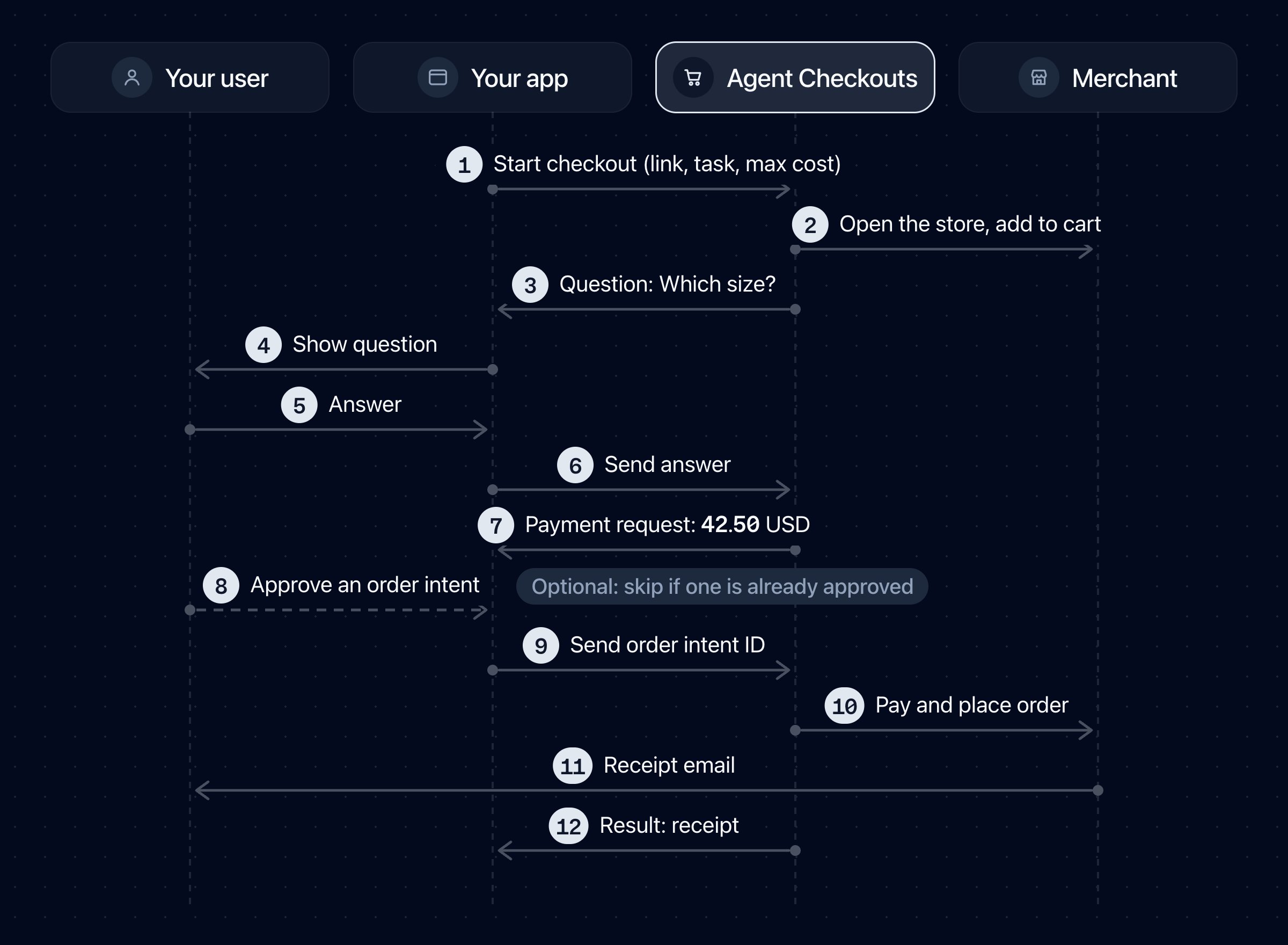
An agent checkout is a conversation between your app and Crossmint. Agent Checkouts does the work at the merchant: it finds the products, builds the cart, and checks out. Your app does the work with your user: it shows the questions, sends the answers, and gets the user's approval to pay.
## Who Does What
| Part | What it does |
| - | - |
| Your app | Starts the checkout, shows each question to the user, sends the answers, and sends an order intent ID to pay. |
| Your user | Answers the questions, and approves an order intent: during the checkout, or before it. |
| Agent Checkouts | Opens the merchant's website, finds the products, builds the cart, asks for what it does not know, and checks out with the payment method that your app gives. |
| Merchant | Sells to your user as the merchant of record, sends the receipt, and handles returns. |
A simple integration needs no agent at all: a page that starts the checkout and shows its questions is enough.
## A Tool for Your Agent
When you have an agent, use Agent Checkouts as a subagent or a tool, not as the agent that talks to your user. Your agent keeps the conversation with the user. When the checkout needs something, it sends your agent a structured question with typed fields. Your agent decides how to answer it:
| Your agent | When |
| - | - |
| Answers at once, with no question to the user | It already knows the value, for example the user's email or shipping address. |
| Asks the user in its own words, and puts the reply in the fields | The answer is a simple value, such as a size or a delivery option. |
| Shows a form | The question has several fields, or the user must choose from a list. |
In each case, your agent sends the answer as a form response for that question. Fields marked as protected, such as passwords, are the exception: the user must type them in `CrossmintProtectedInput`, and your agent never sees them.
The checkout can ask many questions. This is by design: your app applies its own rules about which questions go to the user and which your agent answers. See [Answer Questions](/agents/checkouts/buyer-inputs).
## The Conversation
When the checkout needs something, it stops with the status `awaiting_input` and sends a question. There are two kinds of questions:
* **Form.** The merchant needs information, such as a size, a delivery option, or a password. The form has typed fields. Your app shows standard fields with its own controls and protected fields, such as passwords, with `CrossmintProtectedInput`. See [Answer Questions](/agents/checkouts/buyer-inputs).
* **Payment.** The checkout is ready to pay. The question gives the exact amount and the merchant. Your app answers with an order intent ID: an order intent that the user approved before, such as a budget with enough left, or a new one that the user approves now. The card number never goes to your app. For Klarna, the question has a link where the user pays, and your app sends no answer. Other methods, such as Shop Pay or a card saved in the user's merchant account, use form questions instead, for example for a one-time code. See [Pay for a Checkout](/agents/checkouts/payments).
Your app can answer a question, propose an alternative, or decline it. It can also send a text message at any time to change the order, for example "Use standard shipping".
You can give answers before the checkout starts. A buyer profile holds the user's name, contact details, and shipping address, and the task holds the product and the options. Then the checkout asks less. See [Configure a Checkout](/agents/checkouts/configure).
## Statuses
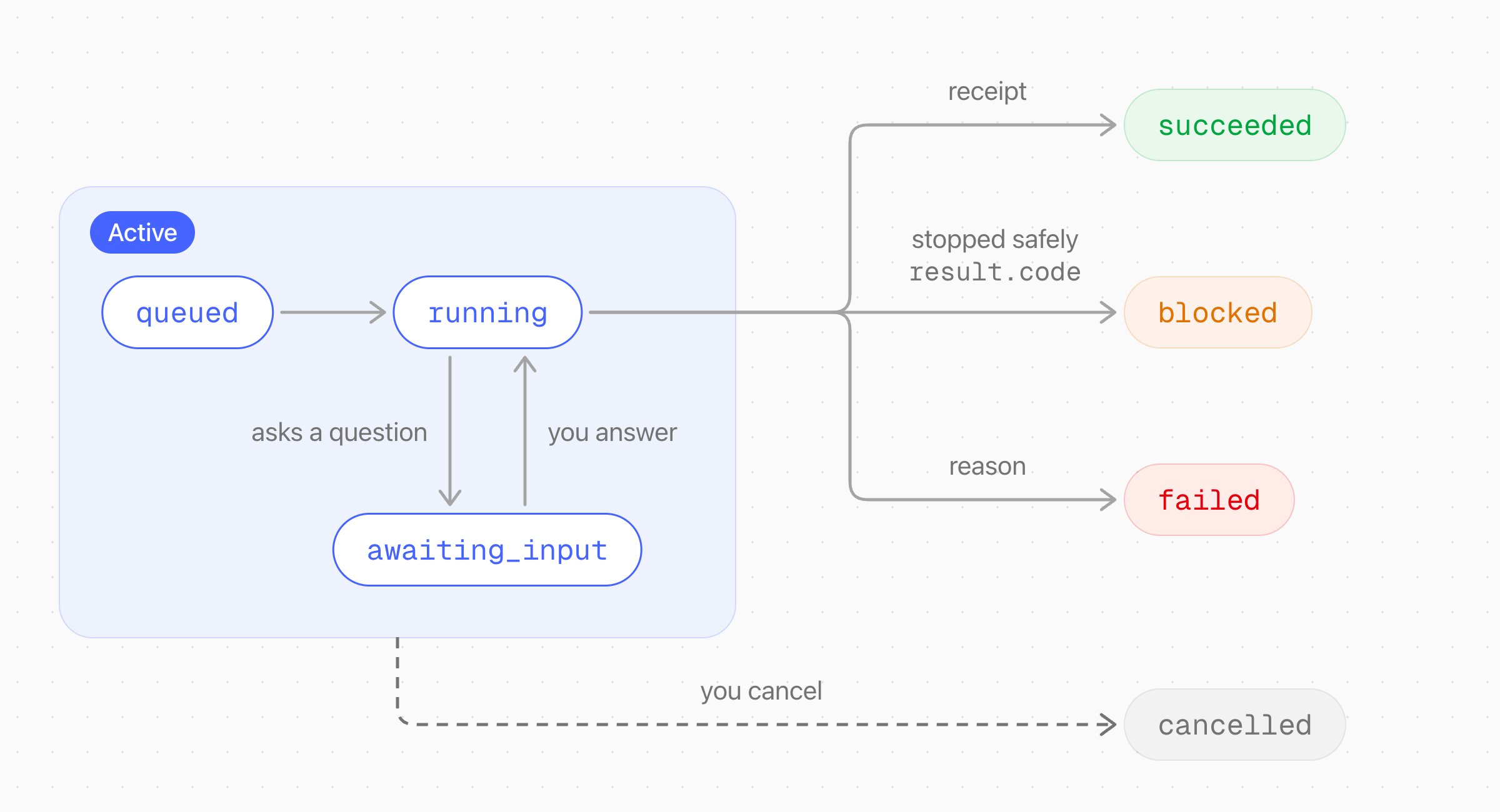
 A checkout starts as `queued`, then `running`. It goes to `awaiting_input` each time it asks a question, and back to `running` when you answer. It ends with one of four statuses:
* `succeeded` — the merchant confirmed the purchase. The result has the receipt when the checkout could capture it.
* `blocked` — the checkout stopped safely, for example because the total was more than the spending cap or the merchant blocked the browser. A code tells you why.
* `failed` — the checkout could not continue. A reason tells you why.
* `cancelled` — your app cancelled the checkout, or the user told the checkout to stop.
See [Statuses, Results, and Errors](/agents/checkouts/statuses) for every code and the next step for each one.
## Protocol or Browser
When a merchant supports an agentic commerce protocol, the checkout uses the protocol. On every other merchant, it uses a browser that Crossmint runs. You do not choose, and your integration is the same for both.
The browser connects from the United States, unless you choose a different country. You can show a read-only live view of the browser in your app with `run.browser.embedUrl`.
Each checkout has its own browser, and Crossmint closes it when the checkout ends. To keep a user signed in at a merchant, attach a browser profile. It keeps the merchant session, and with it the user's cart, for the next checkout. See [Sign In to Stores](/agents/checkouts/merchant-sessions).
## What You Pay For
Crossmint bills each checkout when it starts. Each project gets 1,000 checkouts free each month. The merchant charges the purchase to your user's card, as for any other online order. See [Common Questions](/agents/checkouts/common-questions).
Agent Checkouts does the merchant part of a purchase, and your app does the user part. Your app only shows questions, sends answers, and sends an order intent ID to pay.
## See Also
Test a merchant with OCA, call the API, or add it to your app with one prompt
Every status, result code, and failure reason
How the payment step keeps card data out of your app
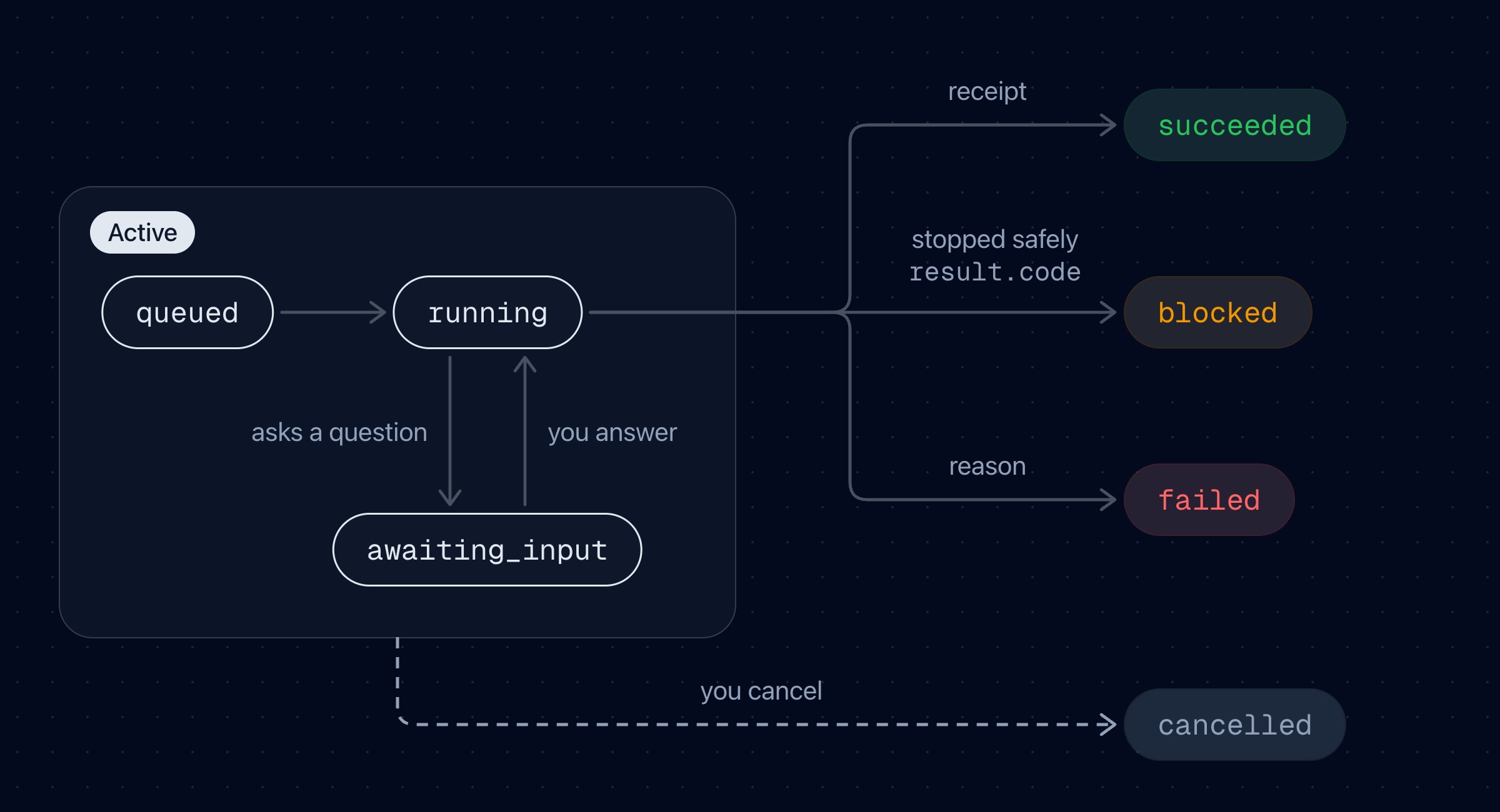
A checkout starts as `queued`, then `running`. It goes to `awaiting_input` each time it asks a question, and back to `running` when you answer. It ends with one of four statuses:
* `succeeded` — the merchant confirmed the purchase. The result has the receipt when the checkout could capture it.
* `blocked` — the checkout stopped safely, for example because the total was more than the spending cap or the merchant blocked the browser. A code tells you why.
* `failed` — the checkout could not continue. A reason tells you why.
* `cancelled` — your app cancelled the checkout, or the user told the checkout to stop.
See [Statuses, Results, and Errors](/agents/checkouts/statuses) for every code and the next step for each one.
## Protocol or Browser
When a merchant supports an agentic commerce protocol, the checkout uses the protocol. On every other merchant, it uses a browser that Crossmint runs. You do not choose, and your integration is the same for both.
The browser connects from the United States, unless you choose a different country. You can show a read-only live view of the browser in your app with `run.browser.embedUrl`.
Each checkout has its own browser, and Crossmint closes it when the checkout ends. To keep a user signed in at a merchant, attach a browser profile. It keeps the merchant session, and with it the user's cart, for the next checkout. See [Sign In to Stores](/agents/checkouts/merchant-sessions).
## What You Pay For
Crossmint bills each checkout when it starts. Each project gets 1,000 checkouts free each month. The merchant charges the purchase to your user's card, as for any other online order. See [Common Questions](/agents/checkouts/common-questions).
Agent Checkouts does the merchant part of a purchase, and your app does the user part. Your app only shows questions, sends answers, and sends an order intent ID to pay.
## See Also
Test a merchant with OCA, call the API, or add it to your app with one prompt
Every status, result code, and failure reason
How the payment step keeps card data out of your app