> ## Documentation Index
> Fetch the complete documentation index at: https://docs.crossmint.com/llms.txt
> Use this file to discover all available pages before exploring further.
# Flutter
> Allow your mobile users to buy stablecoins with cards
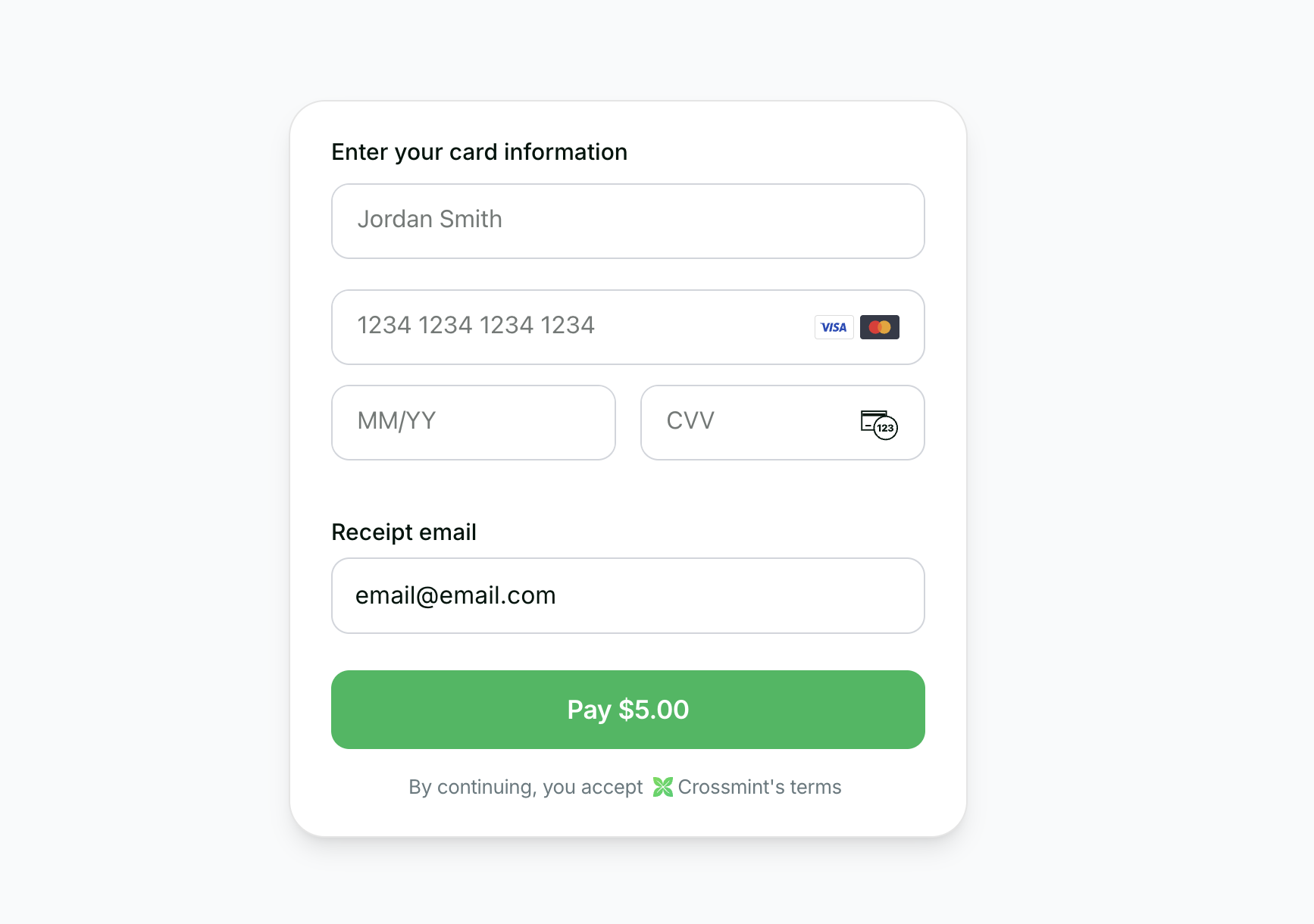 See the Flutter SDK checkout playground.
Crossmint Checkout lets you build a seamless onramp for Flutter users to buy stablecoins with a credit card, Apple Pay, or Google Pay.
In this guide, you will learn how to:
* Create a Crossmint order via an API endpoint
* Use Crossmint's embedded checkout widget to handle KYC, payment, and delivery automatically
## Requirements
* Flutter 3.x+
* Dart SDK ^3.11.4
* iOS 13.0+ / Android 5.0+
## 1. Prerequisites
You also need the `http` package for making API requests to your backend:
```bash theme={null}
flutter pub add http
```
Create a [server-side API key](/introduction/platform/api-keys/server-side) with the
`orders.create` and `orders.read` scopes enabled.
See the Flutter SDK checkout playground.
Crossmint Checkout lets you build a seamless onramp for Flutter users to buy stablecoins with a credit card, Apple Pay, or Google Pay.
In this guide, you will learn how to:
* Create a Crossmint order via an API endpoint
* Use Crossmint's embedded checkout widget to handle KYC, payment, and delivery automatically
## Requirements
* Flutter 3.x+
* Dart SDK ^3.11.4
* iOS 13.0+ / Android 5.0+
## 1. Prerequisites
You also need the `http` package for making API requests to your backend:
```bash theme={null}
flutter pub add http
```
Create a [server-side API key](/introduction/platform/api-keys/server-side) with the
`orders.create` and `orders.read` scopes enabled.
Create a [client-side API key](/introduction/platform/api-keys/client-side) for the
embedded checkout component.
Pass your API key and backend URL via Dart defines when running the app:
```bash theme={null}
flutter run \
--dart-define=CROSSMINT_CLIENT_API_KEY=YOUR_CLIENT_API_KEY \
--dart-define=API_URL=http://10.0.2.2:3000
```
`localhost` on a mobile device or emulator does not resolve to your development machine.
Use `10.0.2.2` for Android emulators, `127.0.0.1` for iOS simulators, or your machine's
LAN IP / an ngrok tunnel for physical devices.
## 2. Create the API Endpoint
If you want to enable onramp orders to external wallets (EOAs or third-party smart wallets) instead of Crossmint wallets, see the [Onramp to External Wallets](/onramp/guides/onramp-to-external-wallets) guide before proceeding.
To initiate an onramp, you must first create a purchase order on your backend. This example uses Express, but you can use any backend framework:
```typescript server/createOrder.ts theme={null}
import express from "express";
const app = express();
app.use(express.json());
const USDC_TOKEN_LOCATORS = {
solanaDevnet: "solana:4zMMC9srt5Ri5X14GAgXhaHii3GnPAEERYPJgZJDncDU",
baseSepolia: "base-sepolia:0x036CbD53842c5426634e7929541eC2318f3dCF7e",
stellarTestnet: "stellar:CBIELTK6YBZJU5UP2WWQEUCYKLPU6AUNZ2BQ4WWFEIE3USCIHMXQDAMA",
};
app.post("/api/create-order", async (req, res) => {
const { walletAddress, receiptEmail, amount, chain } = req.body;
const serverApiKey = process.env.CROSSMINT_SERVER_SIDE_API_KEY;
if (serverApiKey == null) {
return res.status(500).json({ error: "Server API key not configured" });
}
// Use `https://www.crossmint.com` in production.
const baseUrl = process.env.CROSSMINT_BASE_URL ?? "https://staging.crossmint.com";
const response = await fetch(`${baseUrl}/api/2022-06-09/orders`, {
method: "POST",
headers: {
"Content-Type": "application/json",
"x-api-key": serverApiKey,
},
body: JSON.stringify({
lineItems: [
{
tokenLocator: USDC_TOKEN_LOCATORS[chain],
executionParameters: {
mode: "exact-in",
amount,
},
},
],
payment: {
method: "card",
receiptEmail,
},
recipient: {
walletAddress,
},
}),
});
if (!response.ok) {
const error = await response.json();
return res.status(response.status).json(error);
}
const data = await response.json();
res.json(data);
});
app.listen(3000);
```
## 3. Build an Onramp Checkout UI in Your App
Create a Flutter screen that handles order creation and displays a checkout:
```dart lib/screens/onramp_screen.dart theme={null}
import 'dart:convert';
import 'package:flutter/material.dart';
import 'package:http/http.dart' as http;
import 'package:crossmint_flutter/crossmint_flutter_ui.dart';
const clientApiKey = String.fromEnvironment('CROSSMINT_CLIENT_API_KEY');
// Replace with your backend URL.
// On Android emulator use 10.0.2.2 instead of localhost.
// On a physical device use your machine's LAN IP or an ngrok tunnel.
const apiUrl = String.fromEnvironment('API_URL', defaultValue: 'http://10.0.2.2:3000');
class OnrampScreen extends StatefulWidget {
const OnrampScreen({super.key});
@override
State createState() => _OnrampScreenState();
}
class _OnrampScreenState extends State {
final _emailController = TextEditingController(text: 'user@example.com');
final _walletController = TextEditingController();
final _amountController = TextEditingController(text: '5');
String _chain = 'solanaDevnet';
bool _isLoading = false;
Map? _order;
Future _createOrder() async {
setState(() => _isLoading = true);
try {
final response = await http.post(
Uri.parse('$apiUrl/api/create-order'),
headers: {'Content-Type': 'application/json'},
body: jsonEncode({
'walletAddress': _walletController.text,
'receiptEmail': _emailController.text,
'amount': _amountController.text,
'chain': _chain,
}),
);
if (response.statusCode != 200) {
throw Exception('Failed to create order');
}
final data = jsonDecode(response.body);
setState(() {
_order = {
'orderId': data['order']['orderId'],
'clientSecret': data['clientSecret'],
};
});
} catch (e) {
ScaffoldMessenger.of(context).showSnackBar(
SnackBar(content: Text('Failed to create order: $e')),
);
} finally {
setState(() => _isLoading = false);
}
}
@override
Widget build(BuildContext context) {
if (_order != null) {
return Scaffold(
body: CrossmintEmbeddedCheckout(
apiKey: clientApiKey,
config: CrossmintCheckoutConfig(
order: CrossmintCheckoutExistingOrder(
orderId: _order!['orderId']!,
clientSecret: _order!['clientSecret'],
),
payment: CrossmintCheckoutPayment(
fiat: CrossmintCheckoutFiatPayment(enabled: true),
crypto: CrossmintCheckoutCryptoPayment(enabled: false),
),
),
onOrderUpdated: (order) => debugPrint('Order: $order'),
),
);
}
return Scaffold(
body: Padding(
padding: const EdgeInsets.all(24),
child: Column(
crossAxisAlignment: CrossAxisAlignment.start,
children: [
const Text('Buy USDC',
style: TextStyle(fontSize: 24, fontWeight: FontWeight.w600)),
const SizedBox(height: 24),
const Text('Network', style: TextStyle(fontWeight: FontWeight.w500)),
const SizedBox(height: 8),
SegmentedButton(
segments: const [
ButtonSegment(value: 'solanaDevnet', label: Text('Solana')),
ButtonSegment(value: 'baseSepolia', label: Text('Base')),
ButtonSegment(value: 'stellarTestnet', label: Text('Stellar')),
],
selected: {_chain},
onSelectionChanged: (v) => setState(() => _chain = v.first),
),
const SizedBox(height: 20),
TextField(
controller: _emailController,
decoration: const InputDecoration(
labelText: 'Email',
border: OutlineInputBorder(),
),
),
const SizedBox(height: 12),
TextField(
controller: _walletController,
decoration: const InputDecoration(
labelText: 'Recipient Wallet',
border: OutlineInputBorder(),
),
),
const SizedBox(height: 12),
TextField(
controller: _amountController,
decoration: const InputDecoration(
labelText: 'Amount (USD)',
border: OutlineInputBorder(),
),
keyboardType: TextInputType.number,
),
const SizedBox(height: 16),
SizedBox(
width: double.infinity,
child: ElevatedButton(
onPressed: _isLoading ? null : _createOrder,
style: ElevatedButton.styleFrom(
backgroundColor: Colors.black,
padding: const EdgeInsets.all(16),
),
child: _isLoading
? const CircularProgressIndicator(color: Colors.white)
: const Text('Continue to Checkout',
style: TextStyle(color: Colors.white, fontSize: 16)),
),
),
],
),
),
);
}
@override
void dispose() {
_emailController.dispose();
_walletController.dispose();
_amountController.dispose();
super.dispose();
}
}
```
## 4. Add the Screen to Your App
Import and render the `OnrampScreen` in your app:
```dart lib/main.dart theme={null}
import 'package:flutter/material.dart';
import 'screens/onramp_screen.dart';
void main() {
runApp(const MaterialApp(home: OnrampScreen()));
}
```
The integration is complete. When users fill in their details and tap "Continue to Checkout", the API creates an order and the embedded checkout widget handles KYC, payment, and delivery automatically.
**Testing:** Use the test credit card number `4242 4242 4242 4242` with any future expiration date and any 3-digit CVC.
## 5. Transaction Completion
## 6. Next Steps