> ## Documentation Index
> Fetch the complete documentation index at: https://docs.crossmint.com/llms.txt
> Use this file to discover all available pages before exploring further.
# Kotlin
> Allow your Android users to buy stablecoins with credit cards and Google Pay
In this guide, you'll learn how to:
* Install the Kotlin SDK
* Create an Onramp order for your authenticated users
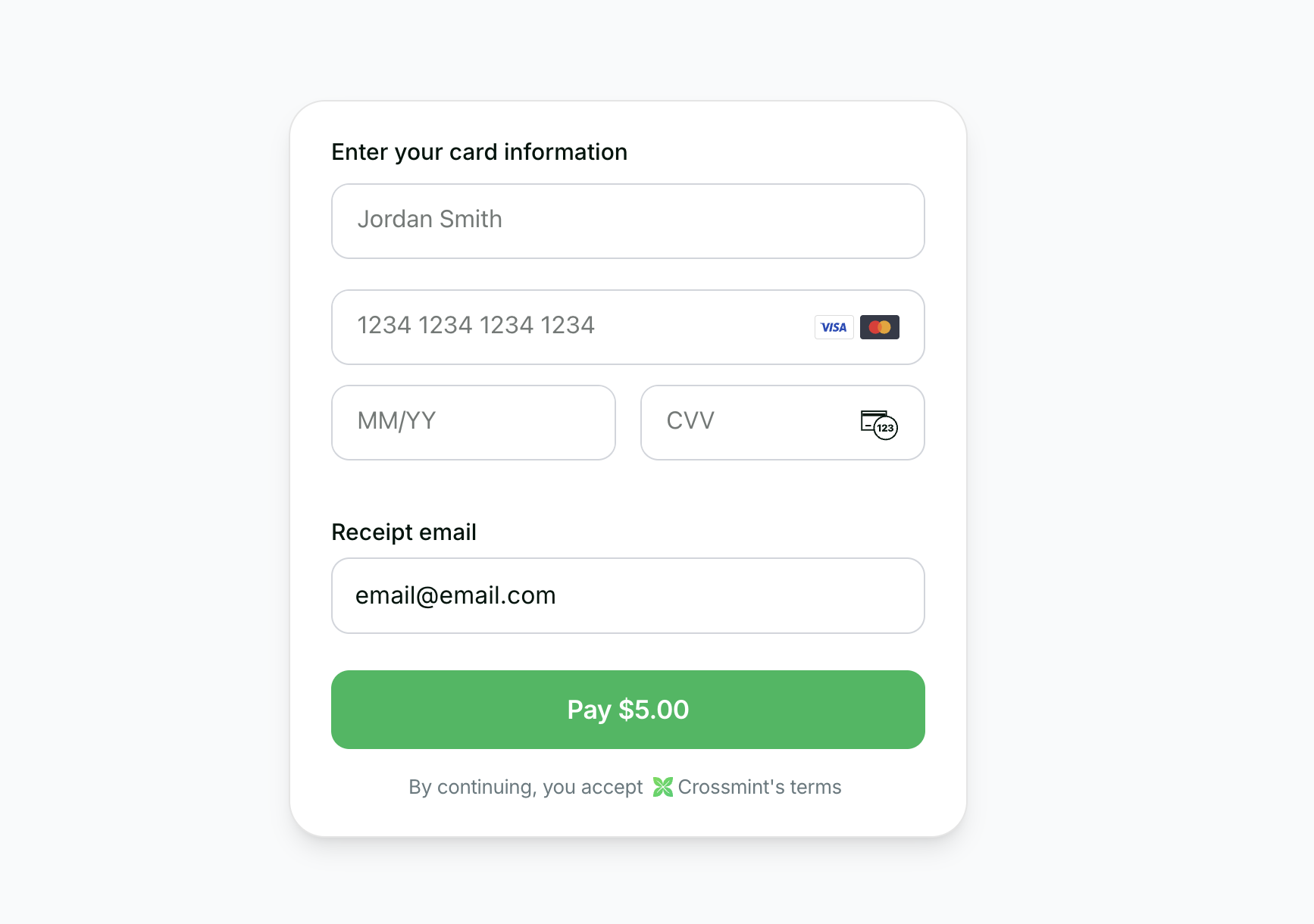
* Use the embedded checkout component to handle KYC, payment, and delivery
 View the Kotlin checkout example repository.
## Requirements
* **Android SDK 24+**
* **Jetpack Compose**
* Android Studio Arctic Fox or later
## 1. Installation
Install the Crossmint Kotlin SDK using Maven Central.
Add the following dependency to your app's `build.gradle.kts` file:
```kotlin theme={null}
dependencies {
implementation("com.crossmint:crossmint-sdk-android:0.0.9")
}
```
Create a [server-side API key](https://docs.crossmint.com/introduction/platform/api-keys/server-side) with the
`orders.create` and `orders.read` scopes enabled. In staging, all scopes are included in your API key.
## 2. Create Order
If you want to enable onramp orders to external wallets (EOAs or third-party smart wallets) instead of Crossmint wallets, see the [Onramp to External Wallets](/onramp/guides/onramp-to-external-wallets) guide before proceeding.
Use the [Create Order API](/api-reference/headless/create-order) to initiate the purchase process from your backend.
## 3. Use Component
Once you have the order response with `orderId` and `clientSecret`, use Crossmint's embedded checkout component in your Jetpack Compose view.
The component supports **native Google Pay** for a seamless Android payment experience.
```kotlin theme={null}
import com.crossmint.kotlin.checkout.CheckoutEnvironment
import com.crossmint.kotlin.checkout.CrossmintEmbeddedCheckout
import com.crossmint.kotlin.checkout.models.*
CrossmintEmbeddedCheckout(
orderId = "",
clientSecret = "",
payment = CheckoutPayment(
crypto = CheckoutCryptoPayment(enabled = false),
fiat = CheckoutFiatPayment(
enabled = true,
allowedMethods = CheckoutAllowedMethods(
googlePay = true, // Native Google Pay support
applePay = false,
card = true
)
)
),
appearance = CheckoutAppearance(
rules = CheckoutAppearanceRules(
destinationInput = CheckoutDestinationInputRule(display = "hidden"),
receiptEmailInput = CheckoutReceiptEmailInputRule(display = "hidden")
)
),
environment = CheckoutEnvironment.STAGING
)
```
### Key Features
* **Native Google Pay**: Seamless integration with Android payment system
* **Jetpack Compose Components**: Modern declarative UI framework
* **Automatic KYC**: Handles verification flow automatically
* **Customizable Appearance**: Control visibility of UI elements
## 4. Track Order
## 5. Transaction Completion
## 6. Next Steps
* View the Kotlin checkout example repo on GitHub
View the Kotlin checkout example repository.
## Requirements
* **Android SDK 24+**
* **Jetpack Compose**
* Android Studio Arctic Fox or later
## 1. Installation
Install the Crossmint Kotlin SDK using Maven Central.
Add the following dependency to your app's `build.gradle.kts` file:
```kotlin theme={null}
dependencies {
implementation("com.crossmint:crossmint-sdk-android:0.0.9")
}
```
Create a [server-side API key](https://docs.crossmint.com/introduction/platform/api-keys/server-side) with the
`orders.create` and `orders.read` scopes enabled. In staging, all scopes are included in your API key.
## 2. Create Order
If you want to enable onramp orders to external wallets (EOAs or third-party smart wallets) instead of Crossmint wallets, see the [Onramp to External Wallets](/onramp/guides/onramp-to-external-wallets) guide before proceeding.
Use the [Create Order API](/api-reference/headless/create-order) to initiate the purchase process from your backend.
## 3. Use Component
Once you have the order response with `orderId` and `clientSecret`, use Crossmint's embedded checkout component in your Jetpack Compose view.
The component supports **native Google Pay** for a seamless Android payment experience.
```kotlin theme={null}
import com.crossmint.kotlin.checkout.CheckoutEnvironment
import com.crossmint.kotlin.checkout.CrossmintEmbeddedCheckout
import com.crossmint.kotlin.checkout.models.*
CrossmintEmbeddedCheckout(
orderId = "",
clientSecret = "",
payment = CheckoutPayment(
crypto = CheckoutCryptoPayment(enabled = false),
fiat = CheckoutFiatPayment(
enabled = true,
allowedMethods = CheckoutAllowedMethods(
googlePay = true, // Native Google Pay support
applePay = false,
card = true
)
)
),
appearance = CheckoutAppearance(
rules = CheckoutAppearanceRules(
destinationInput = CheckoutDestinationInputRule(display = "hidden"),
receiptEmailInput = CheckoutReceiptEmailInputRule(display = "hidden")
)
),
environment = CheckoutEnvironment.STAGING
)
```
### Key Features
* **Native Google Pay**: Seamless integration with Android payment system
* **Jetpack Compose Components**: Modern declarative UI framework
* **Automatic KYC**: Handles verification flow automatically
* **Customizable Appearance**: Control visibility of UI elements
## 4. Track Order
## 5. Transaction Completion
## 6. Next Steps
* View the Kotlin checkout example repo on GitHub