> ## Documentation Index
> Fetch the complete documentation index at: https://docs.crossmint.com/llms.txt
> Use this file to discover all available pages before exploring further.
# Testing Tips
> This document is intended to share some of the best practices and tips for testing.
## Limits in Staging
In order to preserve testnet ETH/tokens, Crossmint imposes very low upper bound limits on NFT prices in the staging
environment. The default limit on production is USD $0.75 - $1,500 per transaction.
To avoid issues, set the `totalPrice` and the onchain NFT price to no more than:
* Ethereum (Sepolia): 0.000005 ETH (this applies for other EVM chains as well)
* Polygon (Amoy): 0.005 MATIC
* Solana (Devnet): 0.001 SOL
* USDC (all chains): \$10
* Other chains: the equivalent of \$0.10 in the native token
The minimum credit card charge amount is \$0.50. Even though the price of the NFT at the above rates will often be
less the \$0.01, the checkout will still show \$0.50. This will be less of an issue on production when you're
charging full price.
## Test Credit Card Numbers
When testing the Checkout and credit card payments on staging you'll need to use test card numbers. You can use these cards to test the flow end-to-end without actually processing real payments.
You can use the following test credit card numbers:
* `4242424242424242` (Visa)
* `4000056655665556` (Visa Debit)
* `5555555555554444` (Mastercard)
* `5200828282828210` (Mastercard Debit)
For `CVV` or `CVC`, use any 3 digit number
For `Expiry Date` or `MM/YY`, enter any future date
### Advanced Card Testing
If you want to simulate purchases from [different countries](https://stripe.com/docs/testing?testing-method=card-numbers#international-cards), [decline conditions](https://stripe.com/docs/testing?testing-method=card-numbers#declined-payments), or other [brands](https://stripe.com/docs/testing?testing-method=card-numbers#cards) refer to the [Stripe documentation](https://stripe.com/docs/testing?testing-method=card-numbers) for more test card numbers.
## Reviewing Orders in the Developer Console
You can get insights into the purchases being made against your collection by navigating to the Orders tab for your collection in the Developer Console. You can use this to get insights about orders in production, but also to see the status of orders when testing out your integration in the staging environment.
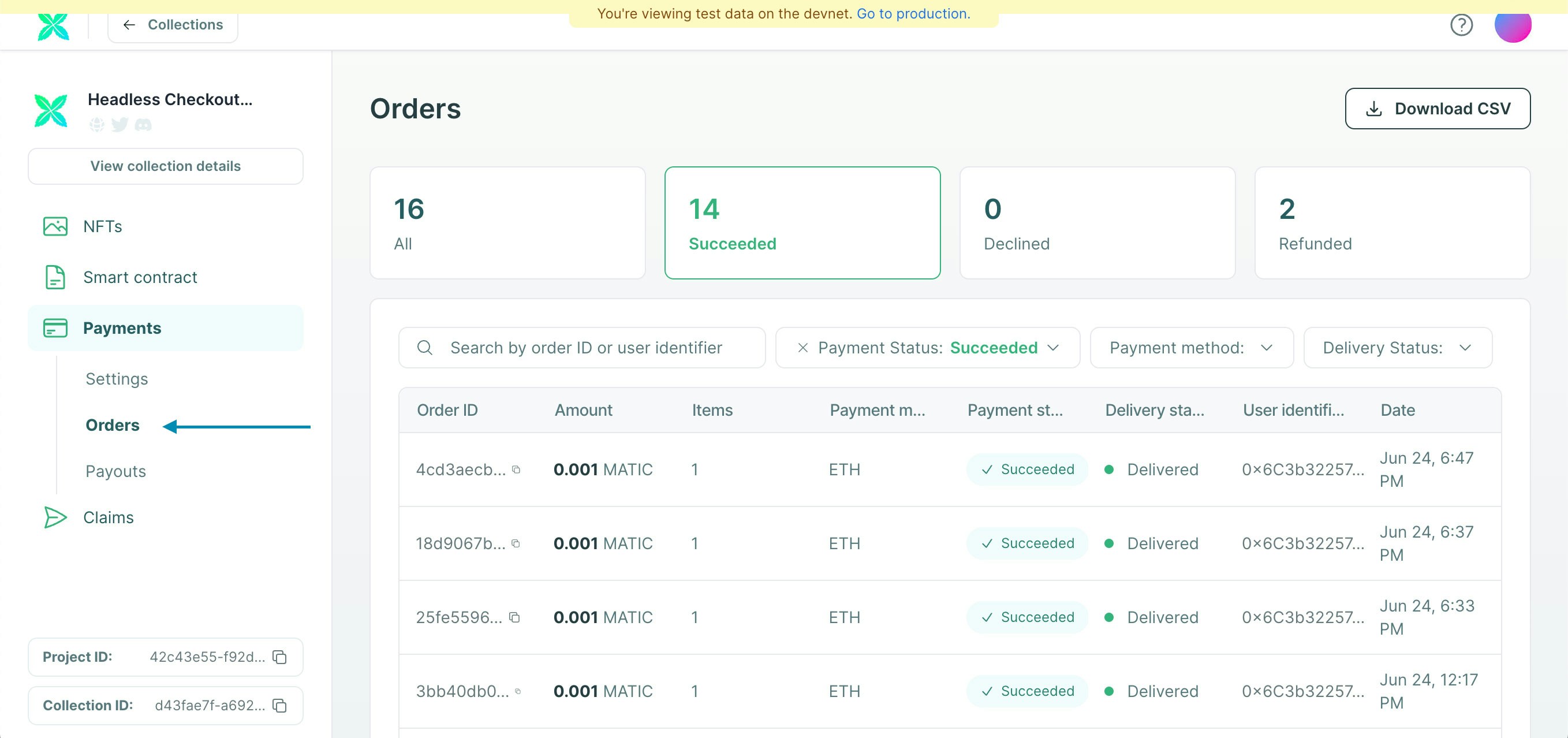 When looking for pre-completion phase orders while testing [Headless Checkout](/payments/headless/overview), you'll
need to enter the order ID in the search box. This is because the console view purposefully has a reduced list of
status options for filtering.
When looking for pre-completion phase orders while testing [Headless Checkout](/payments/headless/overview), you'll
need to enter the order ID in the search box. This is because the console view purposefully has a reduced list of
status options for filtering.