

You are viewing docs for the previous version of the Wallets SDK. We recommend upgrading to V1. See the updated version of this page or the V1 migration guide.
This quickstart integrates the Crossmint Swift SDK into an iOS app to create a non-custodial wallet for a user, fund it with testnet USDC on Base Sepolia, and send USDC to another wallet.

Before you start

Set up your project and get an API key.

iOS Demo App

See a full working example with a repository to clone.
1

Install the SDK

Add the Crossmint Swift SDK to your project using Swift Package Manager.In Xcode, go to File > Add Package Dependencies and enter the repository URL:
https://github.com/Crossmint/crossmint-swift-sdk
Select the CrossmintClientSDK product to add to your target.

Requirements

  • iOS 15.0+
  • Xcode 16.0+
  • Swift 5.9+
2

Configure your API key

The Crossmint SDK requires a client API key for authentication. Get your client API key using the Crossmint Console.Create a file to store your configuration:
CrossmintConfig.swift
import CrossmintAuth
import CrossmintClient


let crossmintApiKey = "<YOUR_API_KEY>"
lazy var crossmintAuthManager: CrossmintAuthManager = {
    do {
        return try CrossmintAuthManager(apiKey: crossmintApiKey)
    } catch {
        fatalError("Invalid Crossmint configuration: \(error)")
    }
}()
The environment (staging vs production) is automatically determined by your API key. Staging keys start with ck_staging_, production keys with ck_production_.
3

Initialize the Crossmint SDK

Initialize the SDK in your app’s entry point and add the non-custodial signer view modifier. This example uses Crossmint Auth but you can use any authentication provider of your choice.
YourApp.swift
import SwiftUI
import CrossmintClient

@main
struct YourApp: App {
    var body: some Scene {
        WindowGroup {
            ContentView()
                .crossmintNonCustodialSigner(
                    CrossmintSDK.shared(
                        apiKey: crossmintApiKey,
                        authManager: crossmintAuthManager
                    )
                )
        }
    }
}
The .crossmintNonCustodialSigner() modifier is required for transaction signing. It embeds a hidden web view that securely manages the signing process.

Access SDK instances

Inside your views, access SDK functionality using CrossmintSDK.shared:
import CrossmintClient

let sdk = CrossmintSDK.shared
let authManager = sdk.authManager
let wallets = sdk.crossmintWallets
4

Authenticate users

Actions within the SDK are user-based, so first you need to authenticate a user. Choose your authentication method:
Use Crossmint’s built-in OTP authentication for easy, email-based login.
1

Send OTP to user's email

import CrossmintClient

let email = "user@example.com"

do {
    let status = try await crossmintAuthManager.otpAuthentication(
        email: email,
        code: nil,
        forceRefresh: false
    )

    if case let .emailSent(_, emailId) = status {
        // OTP sent to email, now display an input for the OTP
        // Store emailId for the verification step
    }
} catch let error as AuthManagerError {
    // Handle error: error.errorMessage
}
2

Verify the OTP sent to the user's email

import CrossmintClient

let otpCode = "123456" // Code entered by user

do {
    let status = try await crossmintAuthManager.otpAuthentication(
        email: email,
        code: otpCode,
        forceRefresh: false
    )

    if case .authenticated = status {
        // User is authenticated, proceed to create wallet
    }
} catch let error as AuthManagerError {
    // Handle error: error.errorMessage
}
See the iOS Demo App repository for a complete UI implementation example with SwiftUI views.
5

Create a wallet

After authentication, create the user’s wallet. This example uses Base Sepolia (Base testnet) but you can choose any supported chain.
import CrossmintClient

let sdk = CrossmintSDK.shared

do {
    guard let email = await crossmintAuthManager.email else {
        // User not authenticated
        return
    }

    let wallet = try await sdk.crossmintWallets.getOrCreateWallet(
        chain: .baseSepolia,
        signer: .email(email)
    )

    // Wallet is ready to use!
    print("Wallet address: \(wallet.address)")
} catch let error as WalletError {
    // Handle error: error.errorMessage
}
6

Check wallet balance

Before sending tokens, check the wallet balance:
import CrossmintClient
import Wallet
import CrossmintCommonTypes

// Convert to EVMWallet for EVM-specific operations
guard let evmWallet = try? EVMWallet.from(wallet: wallet) else {
    return
}

do {
    let balance = try await evmWallet.balances([.eth, .usdc, .usdxm])

    // Access native token balance
    print("ETH: \(balance.nativeToken.amount)")

    // Access USDC balance
    print("USDC: \(balance.usdc.amount)")

    // Access other tokens
    for token in balance.tokens {
        print("\(token.token.name): \(token.amount)")
    }
} catch let error as WalletError {
    // Handle error: error.errorMessage
}
7

Fund the wallet

Before sending USDC, you need to get some into the wallet.Option 1: Use the staging fund method (staging only)
do {
    try await evmWallet.fund(token: .usdxm, amount: 10)
} catch {
    // Handle error
}
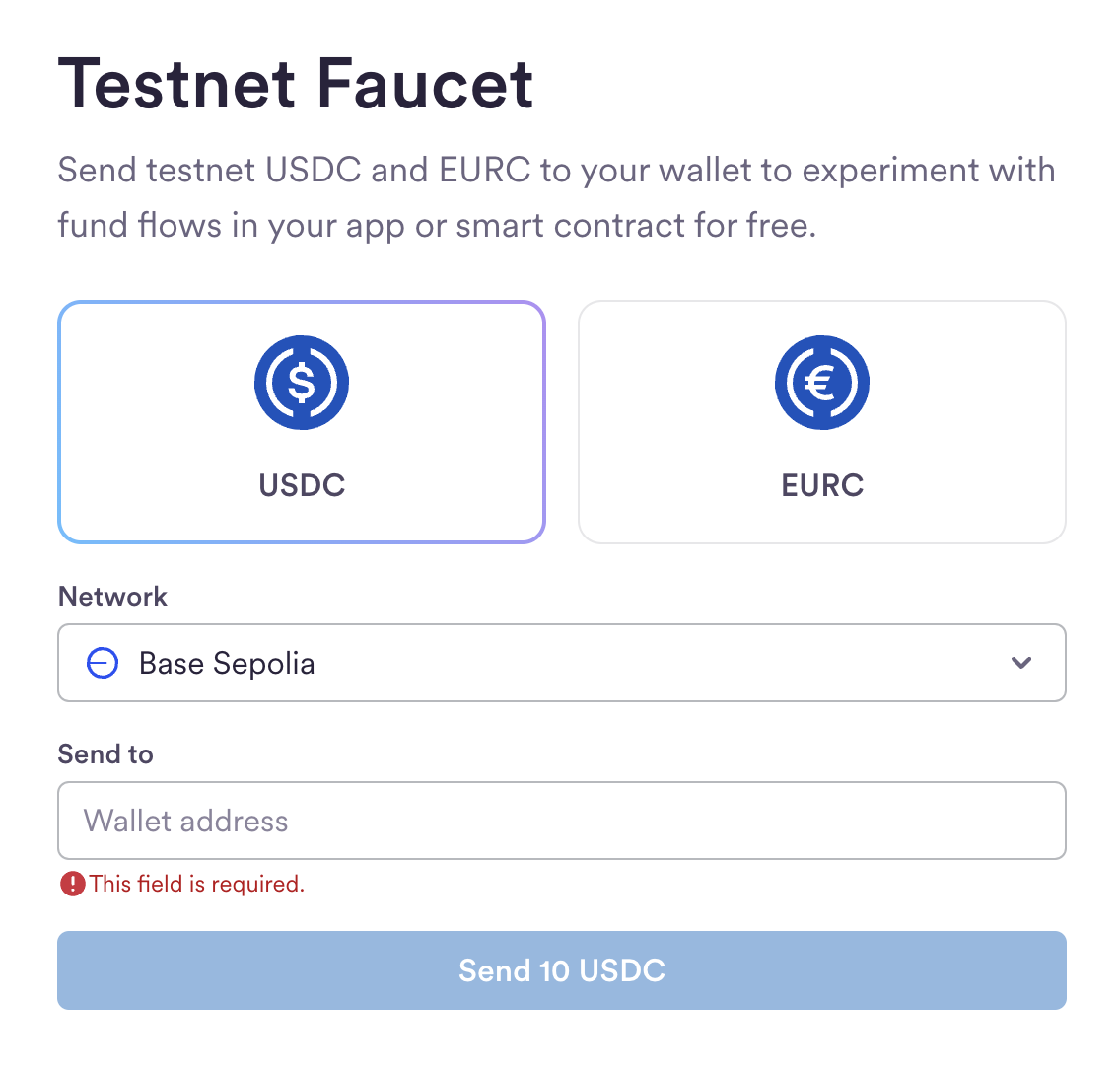
Option 2: Use the USDC FaucetGet the wallet address and use the USDC Faucet:
let walletAddress = wallet.address
print("Fund this address: \(walletAddress)")
Navigate to the faucet, select Base Sepolia, and enter the wallet address.Circle faucet - Base Sepolia selected
8

Send USDC

Send USDC to another wallet using the wallet.send function:
import CrossmintClient
import Wallet
import CrossmintCommonTypes

let recipientAddress = "0x742d35Cc6634C0532925a3b844Bc9e7595f0bEb"

do {
    guard let evmAddress = try? EVMAddress(address: recipientAddress) else {
        // Invalid address
        return
    }

    let result = try await wallet.send(
        token: .usdc,
        recipient: .address(.evm(.baseSepolia, evmAddress)),
        amount: "0.01"
    )

    // Transaction successful
    print("Transaction completed")
} catch let error as TransactionError {
    switch error {
    case .userCancelled:
        // User cancelled the transaction
        break
    default:
        // Handle error: error.errorMessage
        break
    }
}
The first time a wallet sends a transaction on a device, an OTP verification is required. The SDK automatically handles this by presenting an OTP input view.To handle the OTP flow, observe the isOTPRequired publisher in your view:
import SwiftUI
import CrossmintClient

struct ContentView: View {
    @State private var showOTPView = false

    var body: some View {
        YourMainView()
            .onReceive(CrossmintSDK.shared.isOTPRequired) { required in
                showOTPView = required
            }
            .sheet(isPresented: $showOTPView) {
                OTPValidatorView()
            }
    }
}
Following transactions sent from the same device do not need OTP verification. And that is it! You just created a non-custodial wallet for your user and made a USDC transaction on Base Sepolia.

Launching in Production

For production, the steps are almost identical, but some changes are required:
  1. Create a developer account on the production console
  2. Create a production client API key on the API Keys page with the API scopes users.create, users.read, wallets.read, wallets.create, wallets:transactions.create, wallets:transactions.sign, wallets:balance.read, wallets.fund
  3. Update your configuration with the production API key
  4. Use your own authentication provider: For production applications, Crossmint recommends using third-party authentication with providers like Auth0, Firebase, or Supabase, rather than Crossmint Auth (OTP). Configure JWT authentication in the Crossmint Console under API Keys > JWT Authentication

Learn More

Check Balances

Check the balance of a wallet.

Transfer Tokens

Send tokens between wallets.

Operational Signers

Register operational signers on a wallet.
https://mintcdn.com/crossmint/GBIHIdhwMt6rU_EY/images/icons/swift.svg?fit=max&auto=format&n=GBIHIdhwMt6rU_EY&q=85&s=91137deeec19366731790dd77c0982bc

Swift SDK Reference

Deep dive into Swift SDK reference docs.

Talk to an expert

Contact the Crossmint sales team for support.