

Before you start
Set up your project and get an API key.
iOS Demo App
See a full working example with a repository to clone.
1
Install the SDK
Add the Crossmint Swift SDK to your project using Swift Package Manager.In Xcode, go to File > Add Package Dependencies and enter the repository URL:Select the
CrossmintClientSDK product to add to your target.Requirements
- iOS 15.0+
- Xcode 16.0+
- Swift 5.9+
2
Configure your API key
The Crossmint SDK requires a client API key for authentication.
Get your client API key using the Crossmint Console.Create a file to store your configuration:
CrossmintConfig.swift
The environment (staging vs production) is automatically determined by your API key. Staging keys start with
ck_staging_, production keys with ck_production_.3
Initialize the Crossmint SDK
Configure the SDK in your app’s entry point and add the non-custodial signer view modifier. This example uses Crossmint Auth but you can use any authentication provider of your choice.The
YourApp.swift
.crossmintNonCustodialSigner() modifier is required for transaction signing. It embeds a hidden web view that securely manages the signing process.Access SDK instances
Inside your views, access SDK functionality usingCrossmintSDK.shared:4
Authenticate users
Actions within the SDK are user-based, so first you need to authenticate a user.
Choose your authentication method:
- Crossmint Auth (OTP)
- Third-Party Auth (Prod)
Use Crossmint’s built-in OTP authentication for easy, email-based login.
1
Send OTP to user's email
2
Verify the OTP sent to the user's email
See the iOS Demo App repository for a complete UI implementation example with SwiftUI views.
5
Create a wallet
After authentication, create the user’s wallet. This example uses Base Sepolia (Base testnet) but you can choose any supported chain.
Use
createWallet for new users. For returning users, call getWallet(chain: EVMChain.baseSepolia) to fetch their existing wallet without creating a new one.6
Check wallet balance
Before sending tokens, check the wallet balance:
7
Fund the wallet
Before sending USDC, you need to get some into the wallet.Option 1: Use the staging fund method (staging only)Option 2: Use the USDC FaucetGet the wallet address and use the USDC Faucet:Navigate to the faucet, select Base Sepolia, and enter the wallet address.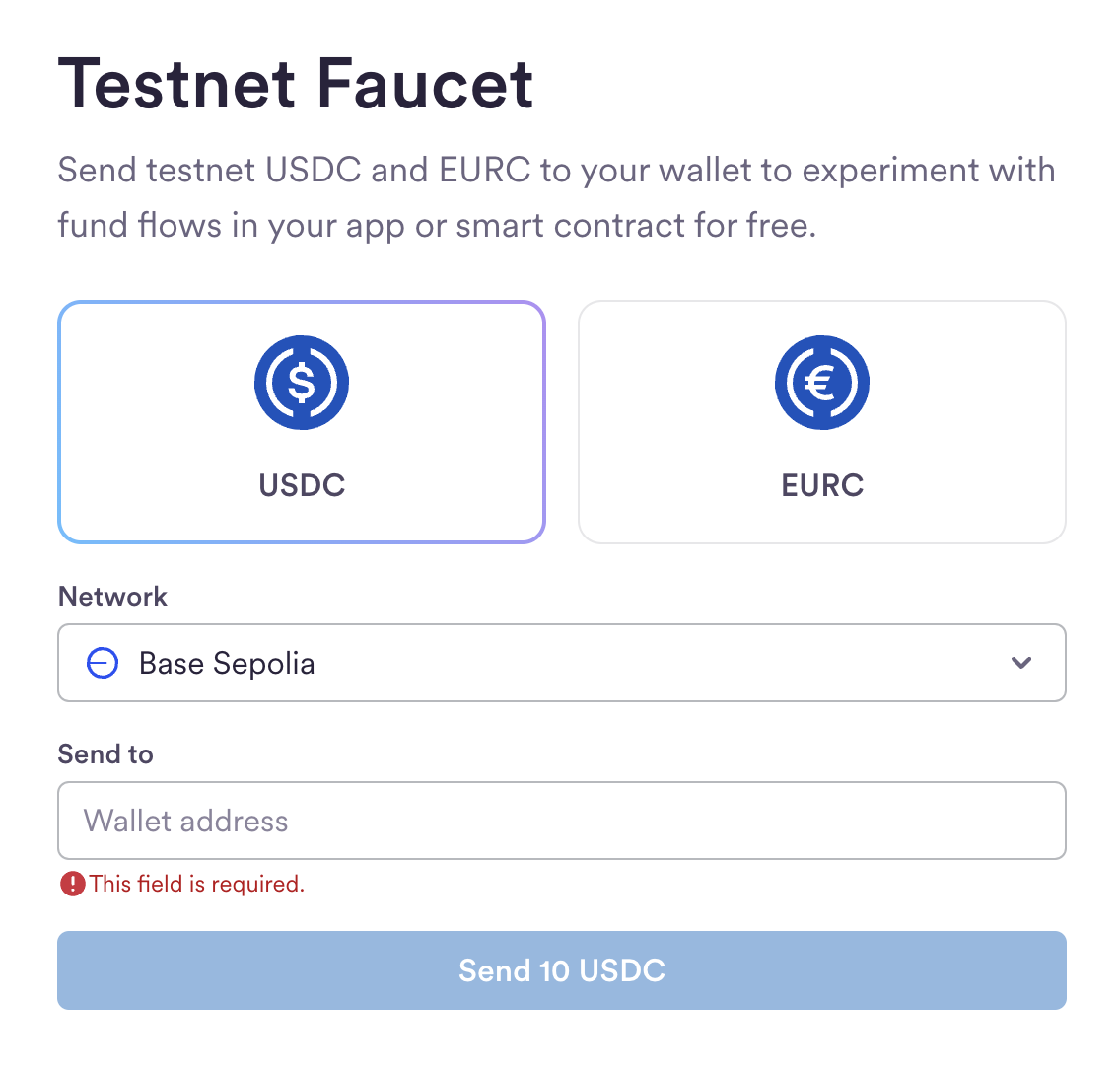
8
Send USDC
Send USDC to another wallet using the The first time a wallet sends a transaction on a device, an OTP verification is required. The SDK automatically handles this by presenting an OTP input view.To handle the OTP flow, observe the Following transactions sent from the same device do not need OTP verification.And that is it! You just created a non-custodial wallet for your user and made a USDC transaction on Base Sepolia.
wallet.send function:The Swift SDK handles transaction approval automatically inside
send(). Unlike the Kotlin SDK, no explicit approve() call is needed.isOTPRequired publisher in your view:Launching in Production
For production, the steps are almost identical, but some changes are required:- Create a developer account on the production console
- Create a production client API key on the API Keys page with the API scopes
users.create,users.read,wallets.read,wallets.create,wallets:transactions.create,wallets:transactions.sign,wallets:balance.read,wallets.fund - Update your configuration with the production API key
- Use your own authentication provider: For production applications, Crossmint recommends using third-party authentication with providers like Auth0, Firebase, or Supabase, rather than Crossmint Auth (OTP). Configure JWT authentication in the Crossmint Console under API Keys > JWT Authentication
- Switch your chains from testnets to their mainnet equivalents (for example,
base-sepoliatobase), and re-create your wallets. Staging wallet addresses do not carry over to production. - Replace test tokens with real assets (for example,
usdxmtousdc), and plan for gas sponsorship as a real cost
Learn More
Check Balances
Check the balance of a wallet.
Transfer Tokens
Send tokens between wallets.
Operational Signers
Register operational signers on a wallet.
Other Links

Swift SDK Reference
Deep dive into Swift SDK reference docs.
Talk to an expert
Contact the Crossmint sales team for support.