

Prerequisites
- Checkout integration — complete the quickstart.
- Server key — a production key with
agent-checkouts.create. Addagent-checkouts.buyer-profiles.createto create a buyer profile. - One user ID — use the same
x-crossmint-user-idfor the checkout, its profiles, and the user’s order intents.
Configure the Checkout
1
Define the purchase and spending cap
A checkout needs Use a product URL when it identifies the item. A merchant home page, category, search, or cart URL also works when the task describes what to find. Include quantity, variants, delivery preferences, and billing preferences in the task.
request.startUrl and constraints.maxCost. Add request.task when the URL does not fully describe the purchase.maxCost limits what the agent may spend. A checkout that would exceed it ends as blocked with result.code: "policy.max_cost_exceeded".Name the payment method in the task, then pay when the checkout asks. Keep card details and passwords out of the task.2
Supply reusable buyer details
A buyer profile stores name, contact, and shipping details. Create it once and attach its ID to later checkouts for the same buyer. It does not contain payment credentials.Use the profile for reusable identity and address data, and the task for this purchase’s preferences. The agent can still request details the profile does not supply, such as a gift message or a merchant-specific question.Buyer-profile create, list, read, update, and delete operations have separate
agent-checkouts.buyer-profiles.* scopes. See Create Buyer Profile for the complete schema.3
Choose the browser country
Merchants see the country that a visitor connects from. Some merchants show different products, prices, or currencies in each country. Some merchants block visitors from other countries.By default, the checkout browser connects from the United States. To connect from a different country, add 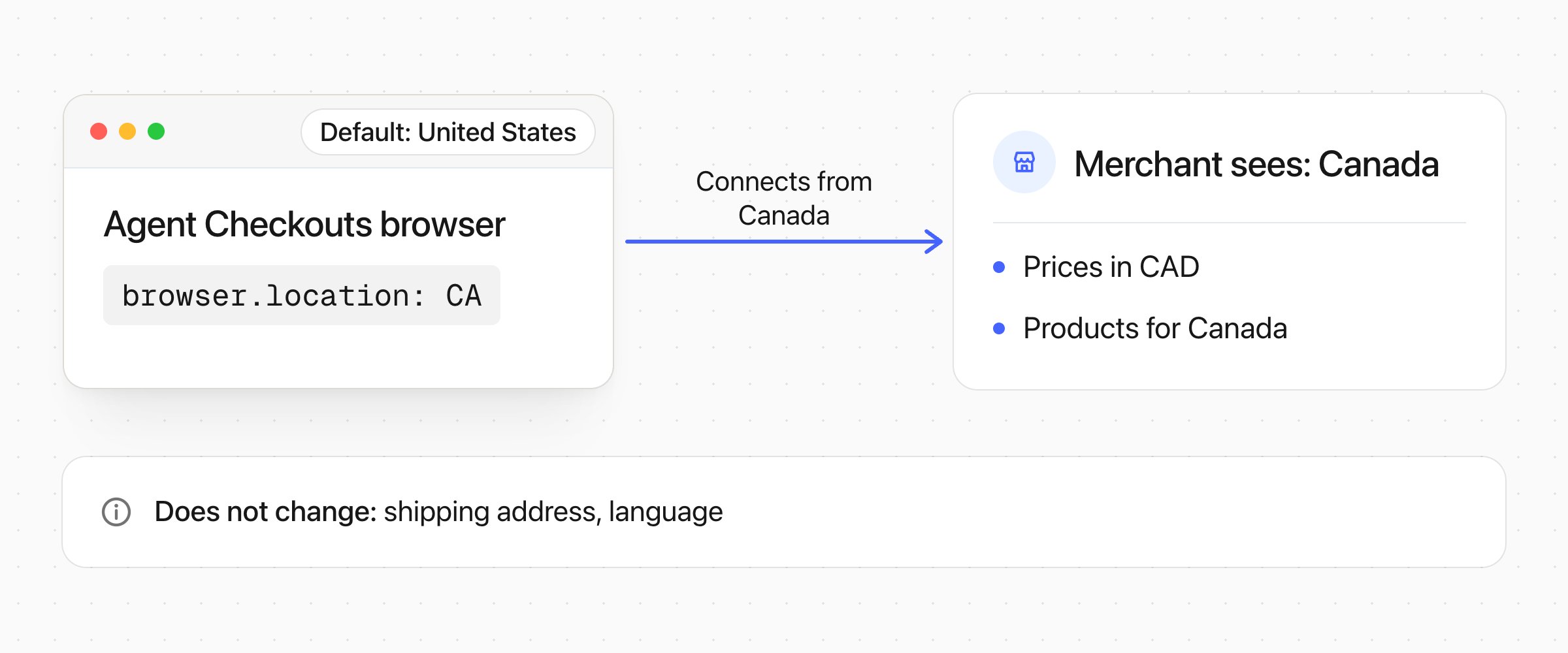
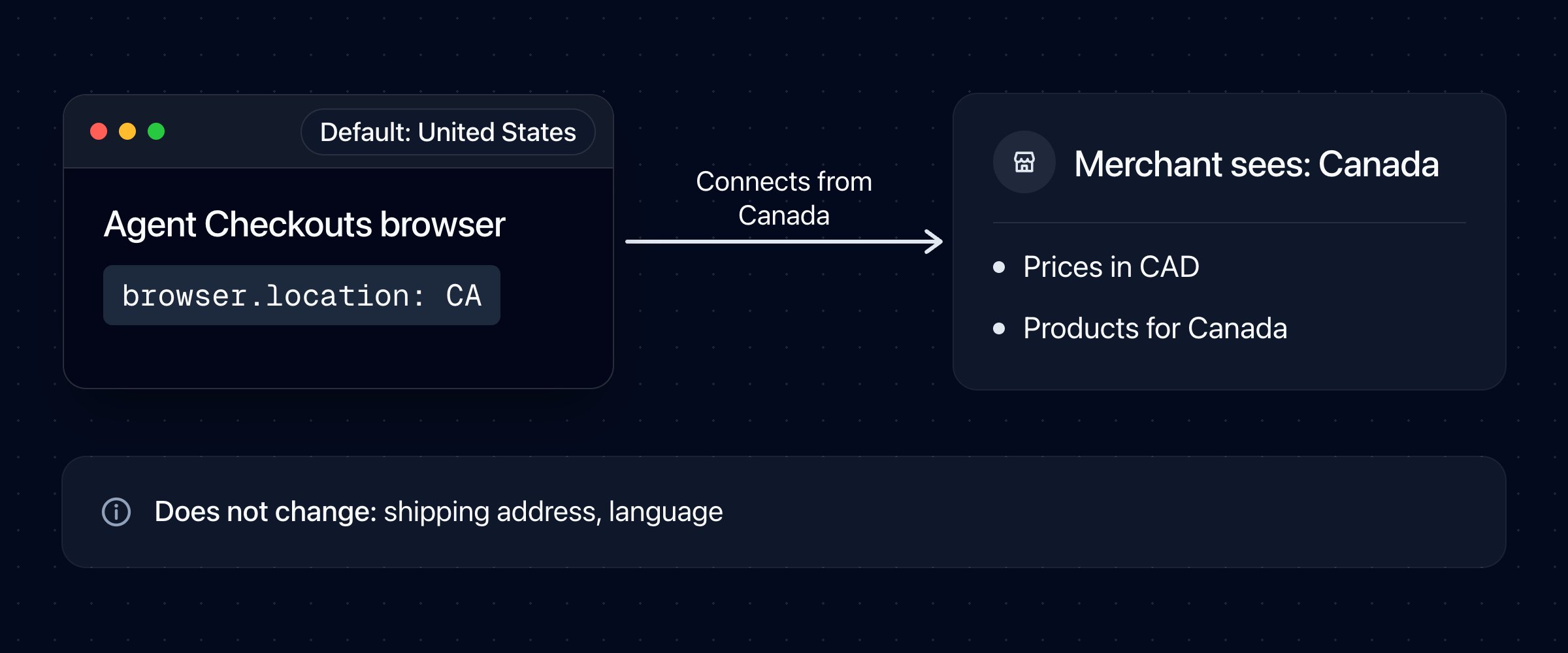
browser.location with a two-letter country code (ISO 3166-1 alpha-2), such as CA for Canada. Crossmint then connects the browser through a proxy in that country:failed with the reason browser_location_unsupported. Crossmint does not use a different country instead. Try again later, choose a different country, or start the checkout without browser.location.4
Add merchant guidance when needed
merchantGuidance supplies short operational notes about a merchant’s checkout. Use it for repeatable problems you have observed, rather than ordinary checkout instructions.Guidance applies to the merchant of
startUrl, for this checkout only. It cannot expand the task, authorize consent, or raise the spending cap. The agent uses the actual page when it contradicts the guidance.Supplying guidance replaces any guidance Crossmint maintains for that merchant. Omit it for standard checkouts; an empty string is rejected. The limit is 20,000 characters, but keep notes short and concrete.5
Create the configured checkout
Combine the options you need in one create request:To reuse a merchant session, also set
browser.profileId. It is independent of the location. See Sign In to Stores.Compare the checkout’s result and browser behavior with earlier attempts when evaluating guidance. Update or remove notes when the merchant changes its layout.Next Steps
Answer Questions
Show the checkout’s questions and send the answers
Create a Checkout
Review the complete create request schema