

Testing the APIs from the browser
The reference pages allow you to call the APIs directly from the browser. To get started:- Create a developer account on the Staging or Production consoles. Read more about the environments here.
- Create an API key from the
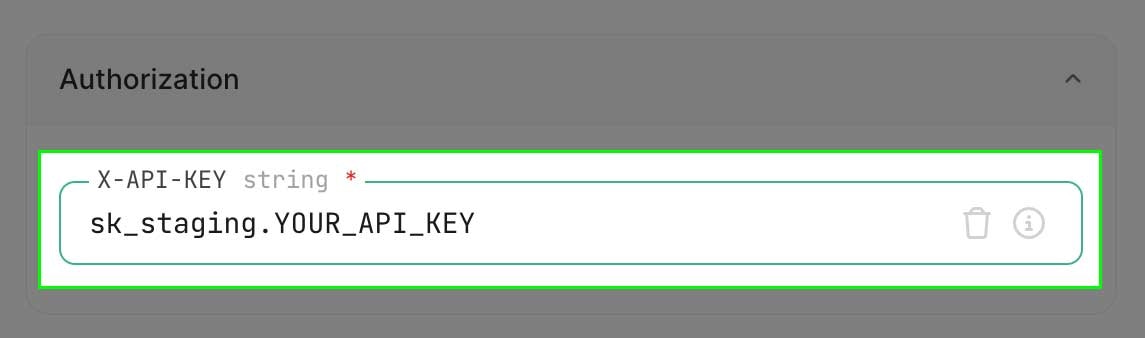
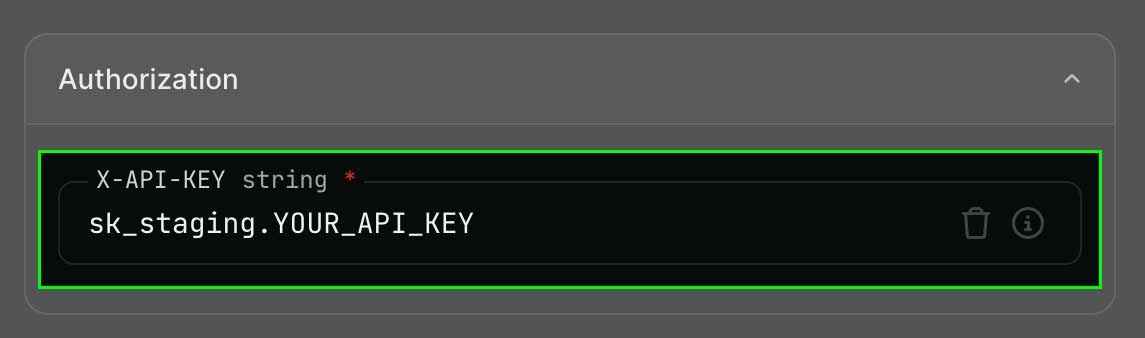
API keystab on the console, with the permissions required for the APIs you want to use. - From the page of your API of choice, insert the right API key in the authorization slot, introduce the different parameters, and call “Send”.
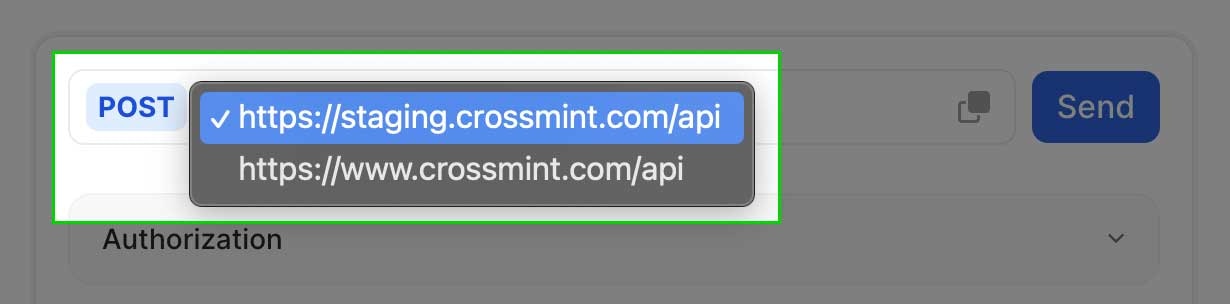
- (Optional) To call APIs in the production environment, find the API endpoint selector (
⌄) next to the endpoint URL, and change it towww.crossmint.com/api.
wallets.create, and nfts.create.
1. Creating Wallets from the API Reference
1. Creating Wallets from the API Reference
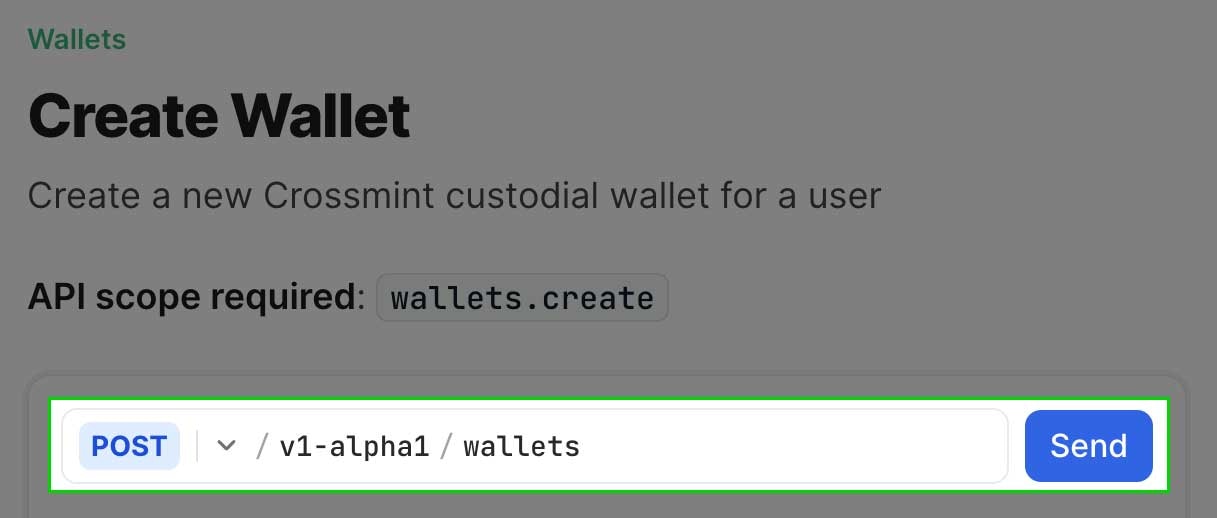
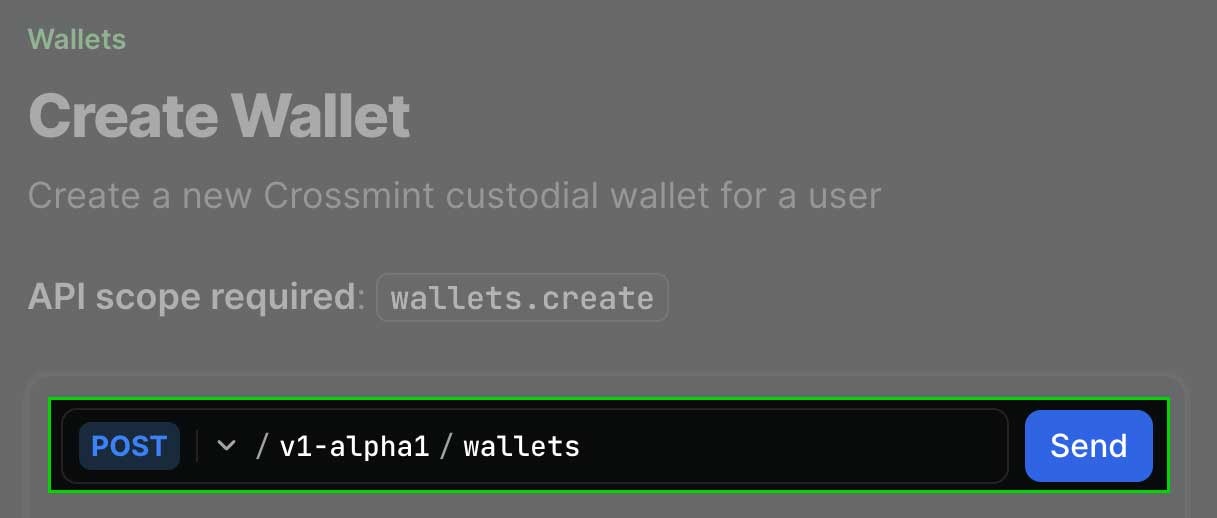
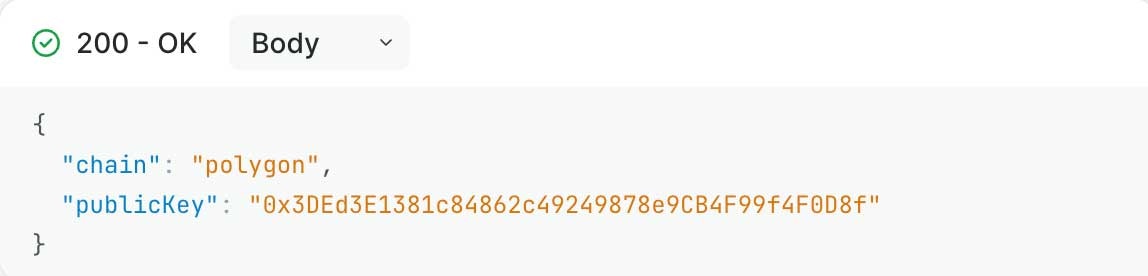
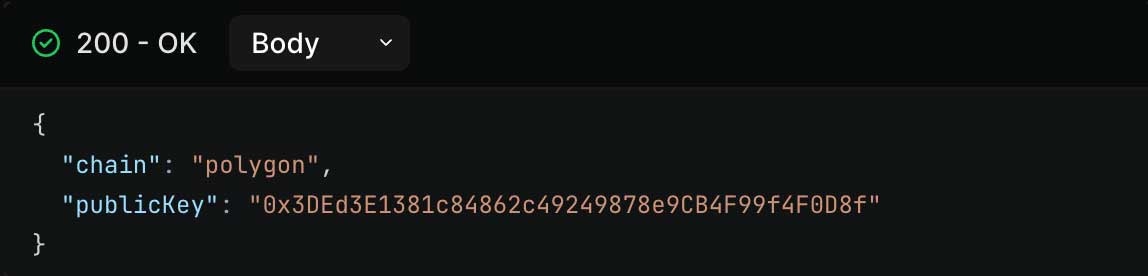
Follow the next steps to create a wallet within 5 minutes:Success! The next guide will show you how to mint an NFT into this wallet and view the content.
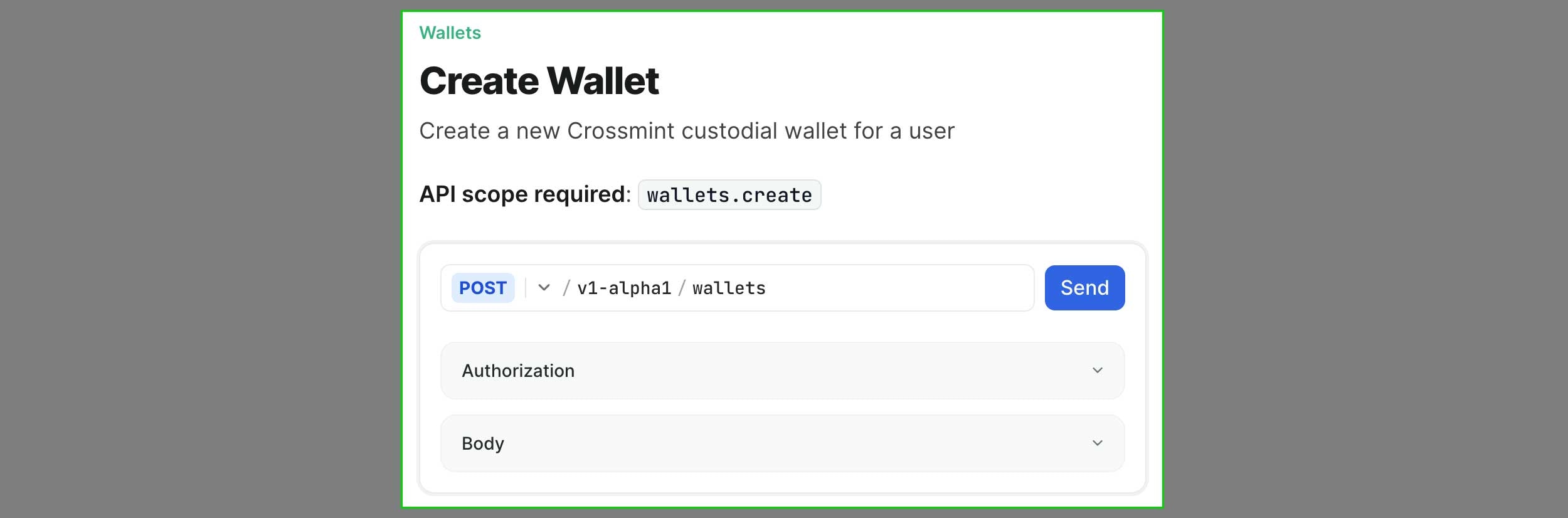
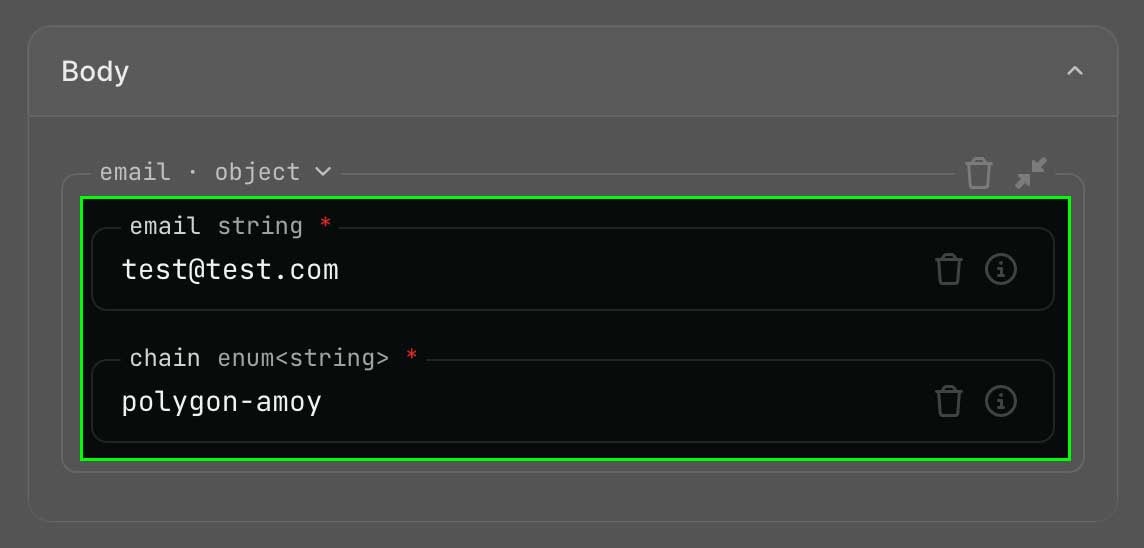
Input the `body` parameters
You may add any additional properties. Each API reference page includes the full list of properties and admissible values.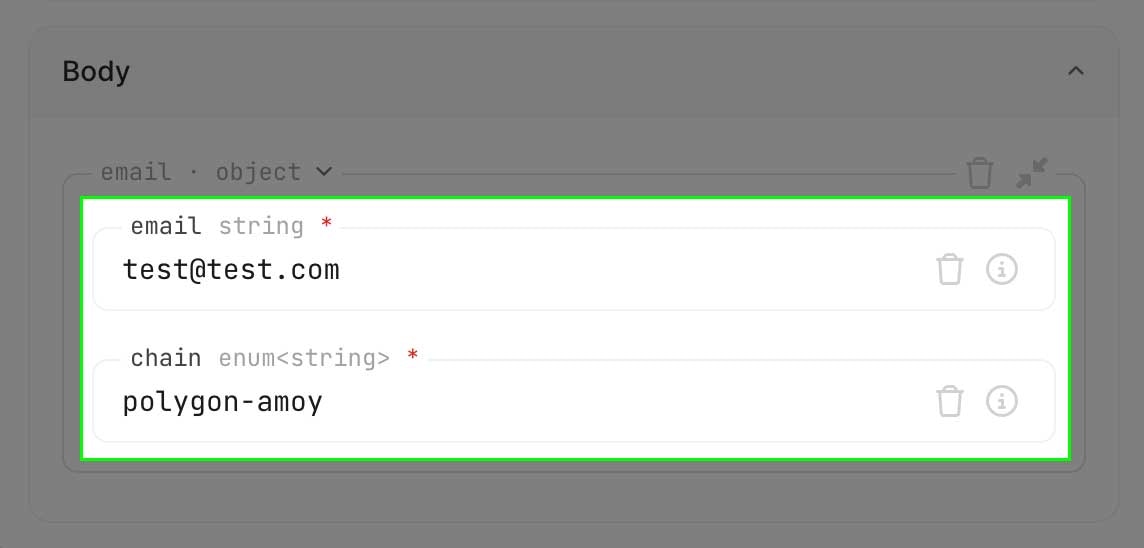
2. Mint NFTs from the API Reference
2. Mint NFTs from the API Reference
In the previous guide, you created a wallet. Now you will deliver an NFT into it and read the wallet’s content.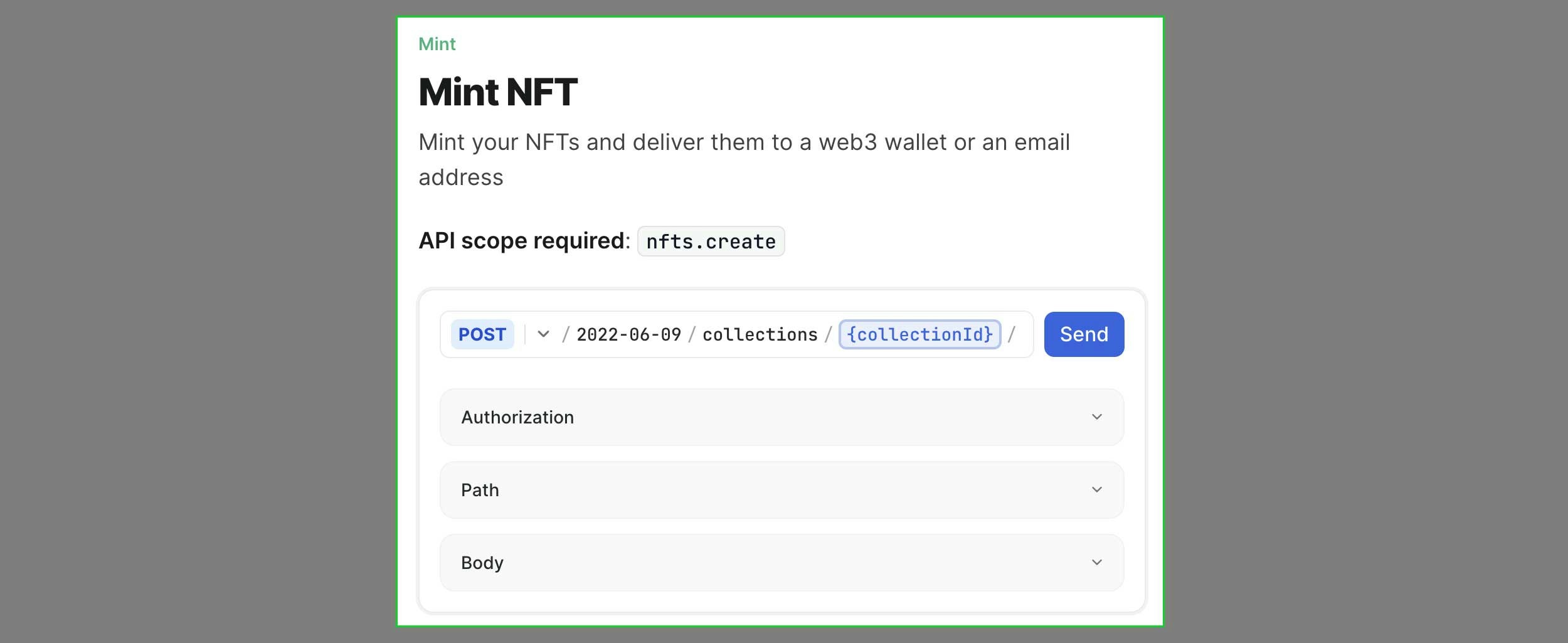

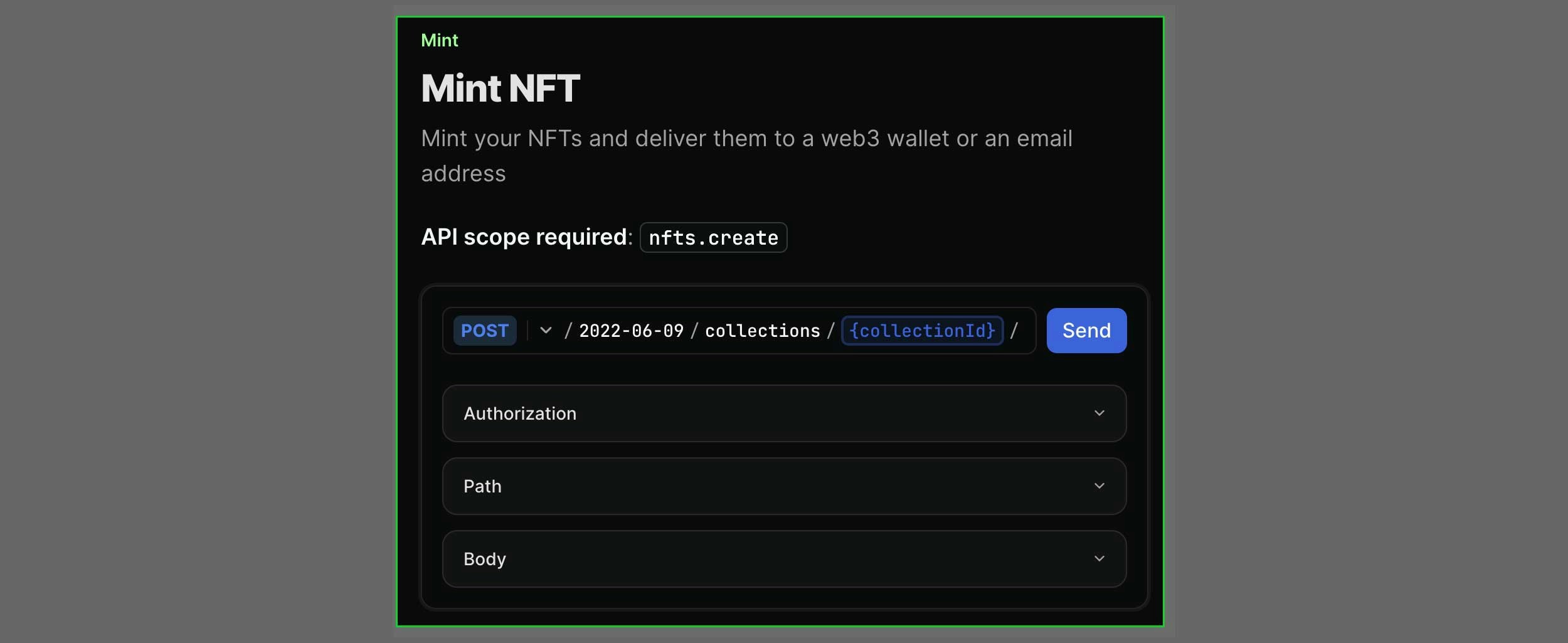
Navigate to the Mint NFT page
Open in a new tab here: /api-reference/minting/nfts/mint-nft
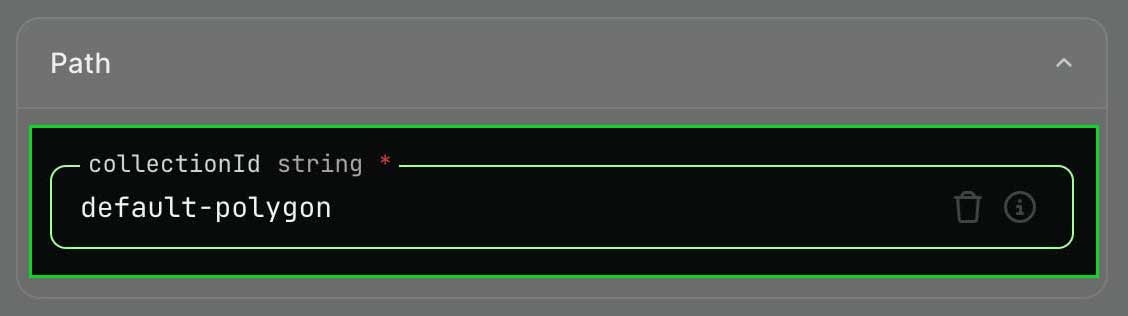
Enter the `default-polygon` collectionId
This is a default collection associated to your account. You can create new ones using the Create Collections API.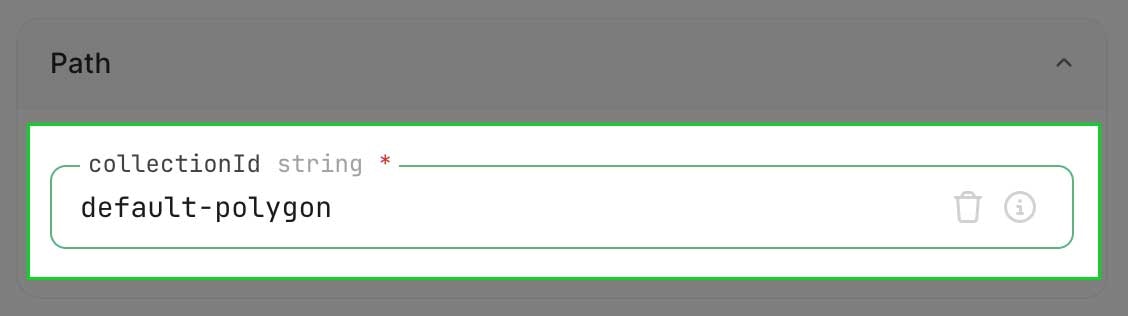
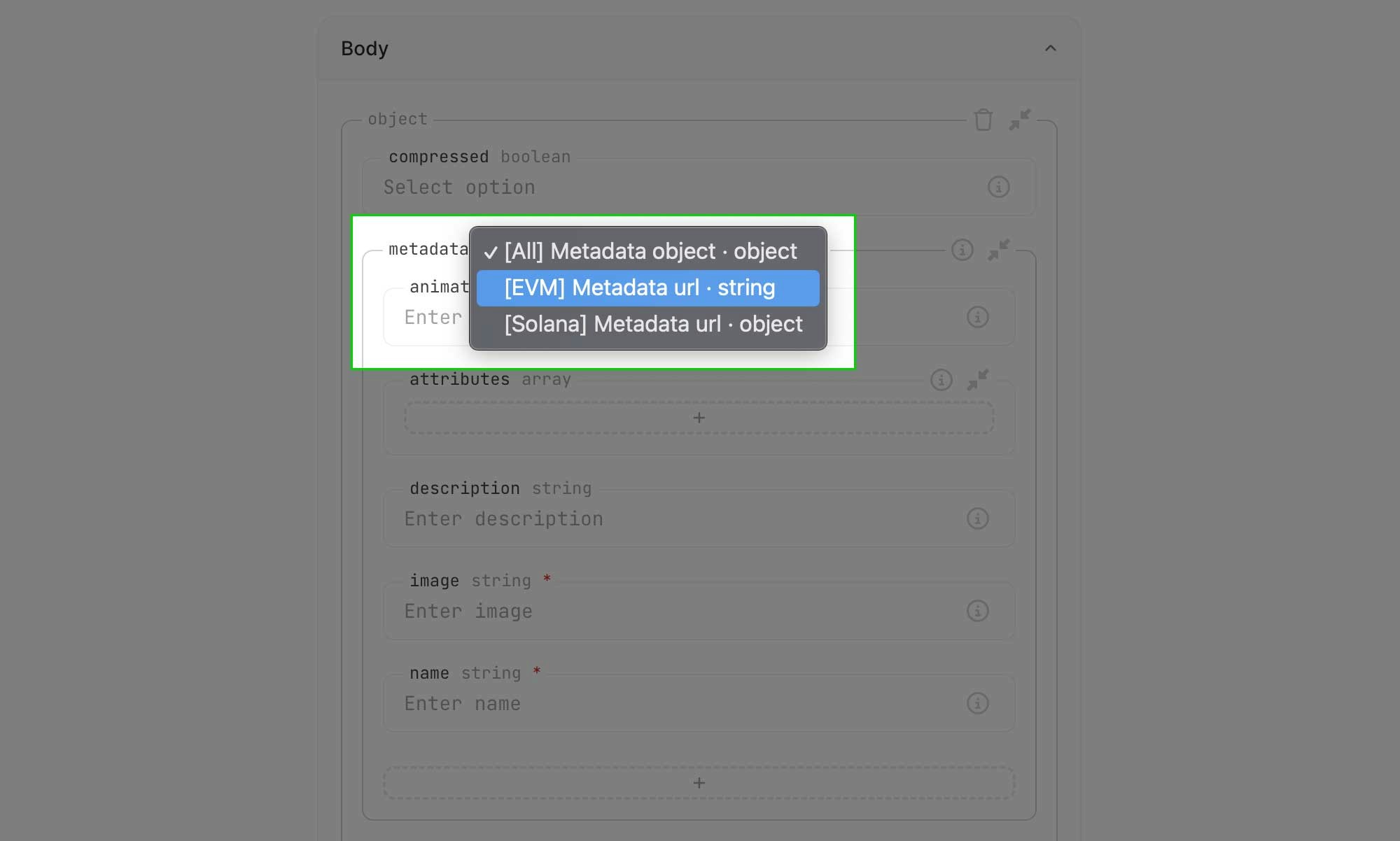
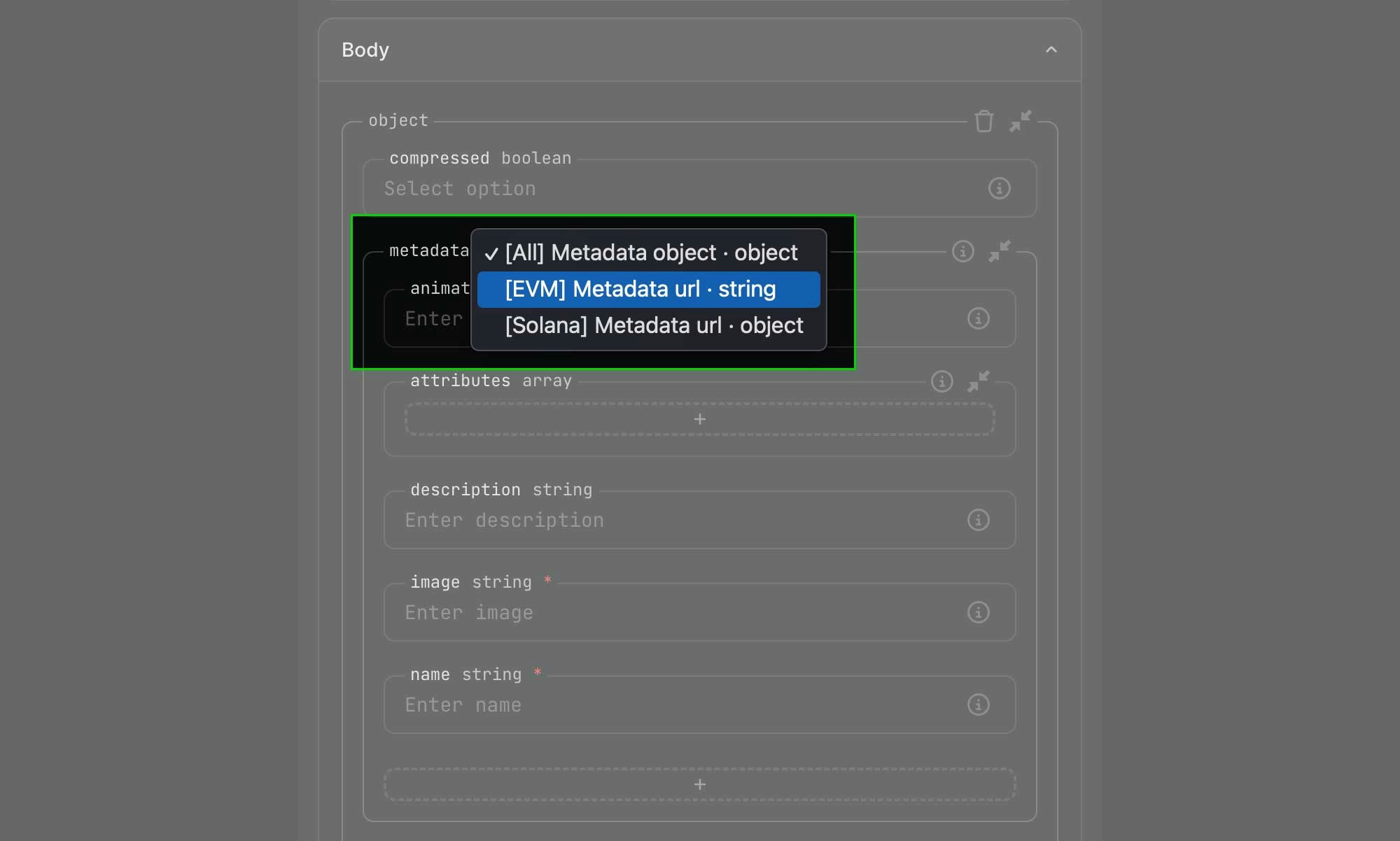
Select the [EVM] Metadata URL metadata option
The selector to choose between the different metadata option can be hard to spot. Look closely at the screenshots below to see where it is.

Enter metadata URL
You can provide your own or use this example URL:
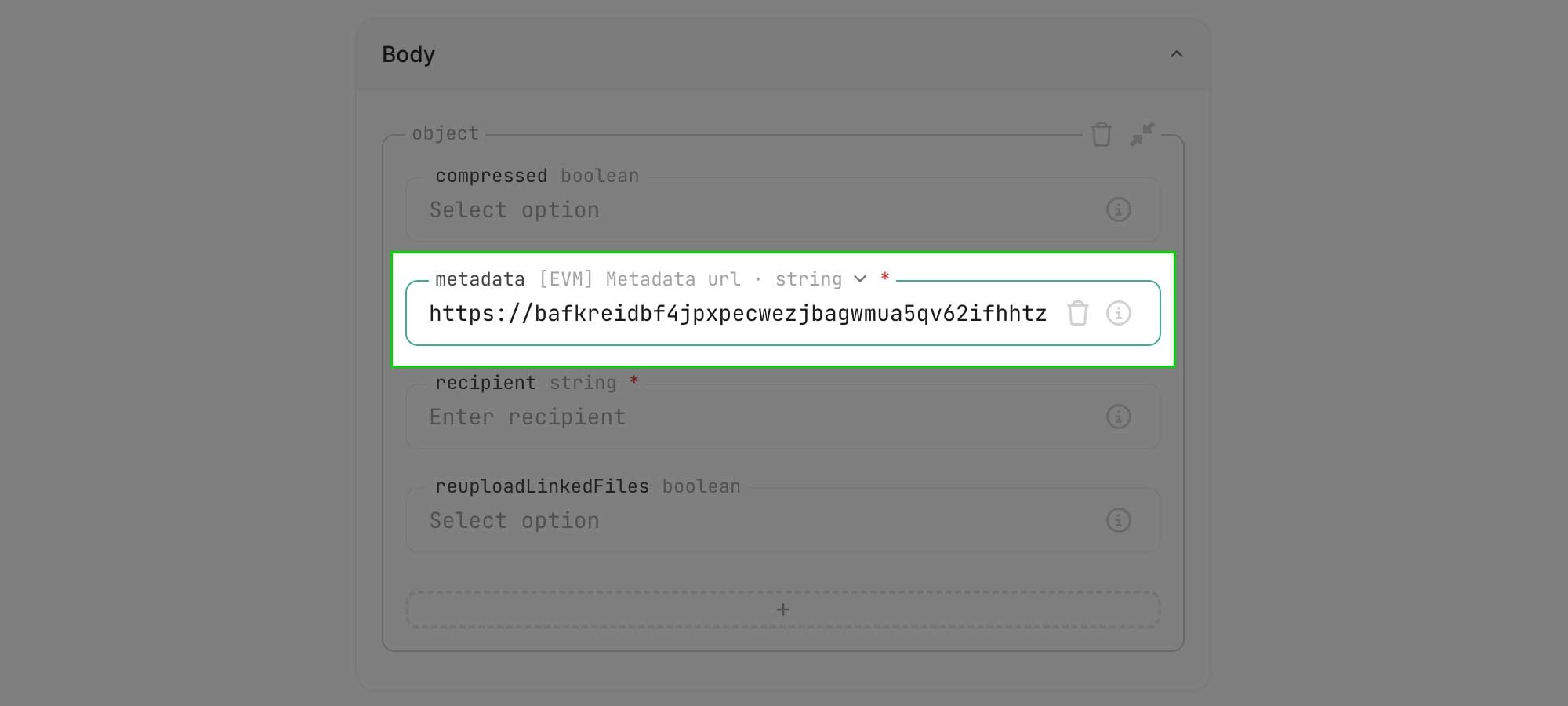
This URL must point to a valid JSON file that adheres to EVM metadata standards.
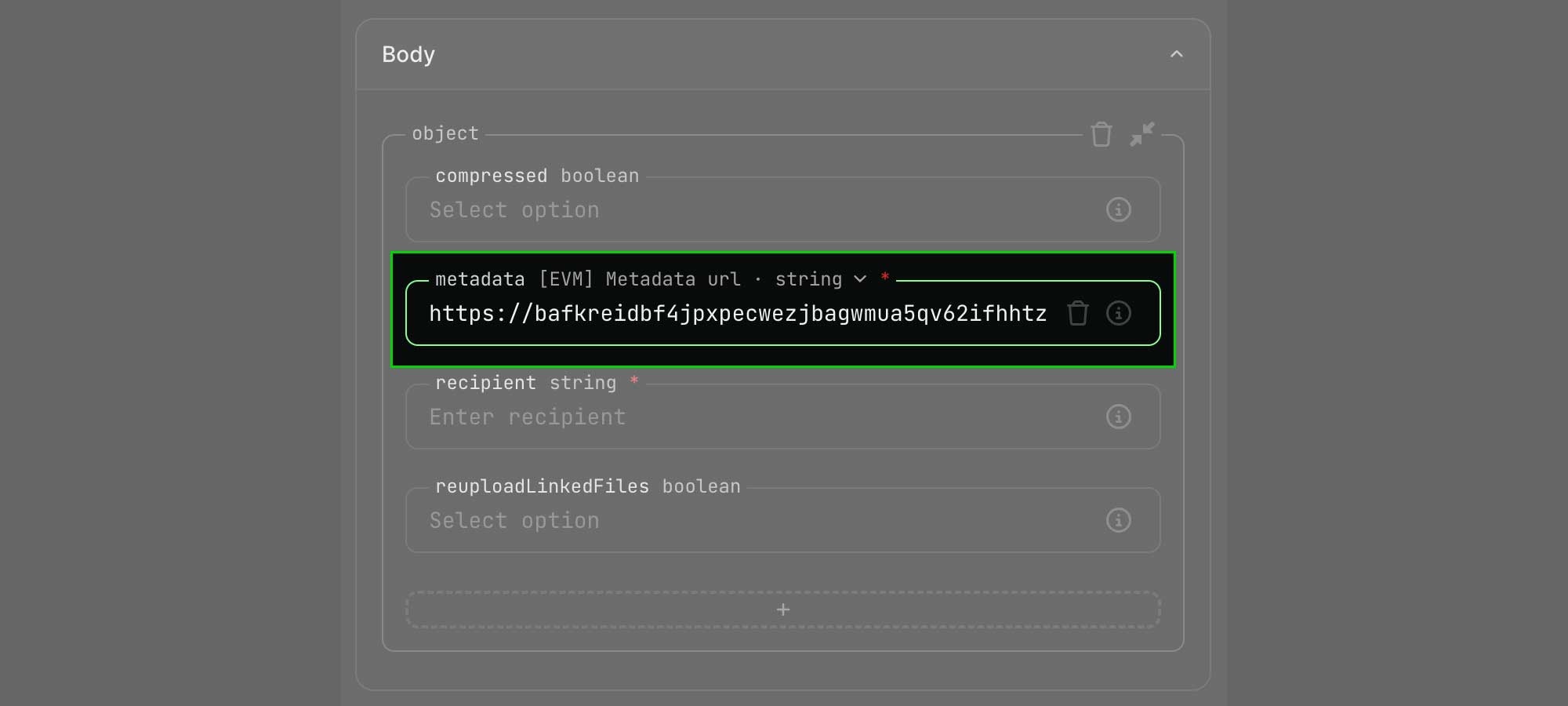
Enter the `recipient`
There are two options for the

recipient parameter. The first enables minting to an email address. The second enables minting directly to a wallet address.
Set `reuploadLinkedFiles` to false
This will prevent unnecessary uploading of files that are already pinned to IPFS.
Crossmint has a 10MB re-upload size limit. For larger files, upload your media to IPFS, create a metadata.json as shown above, submit the metadata file’s URL, and ensure reuploadLinkedFiles is set to false.
The default option is true.

Send the request
Scroll back to the top of the page and click the blue 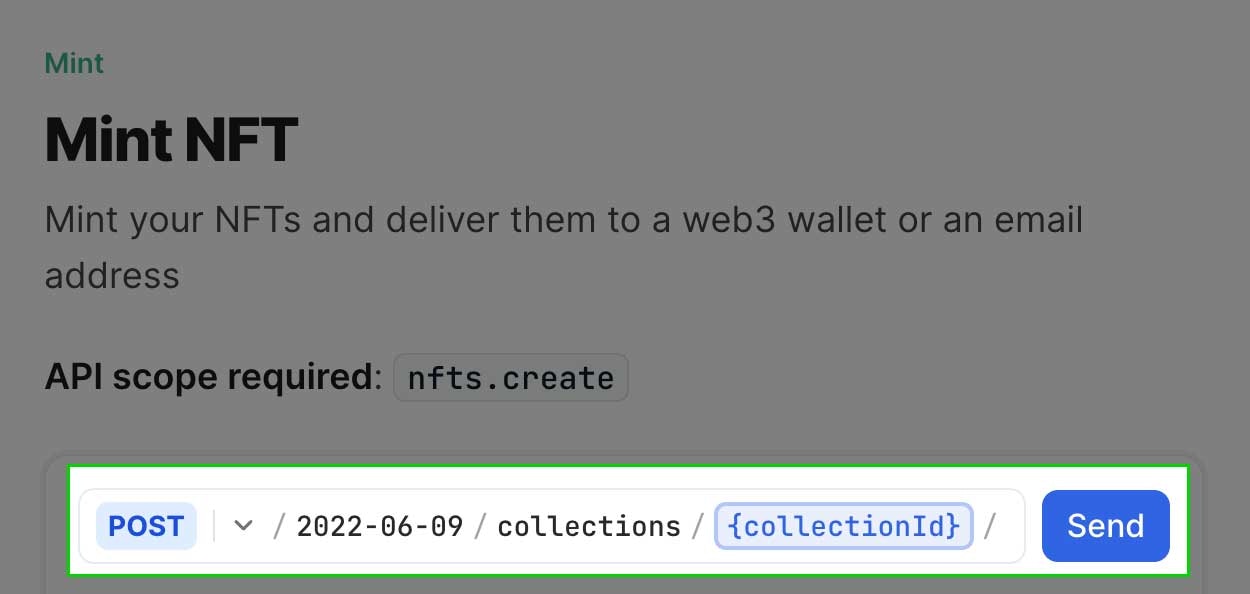
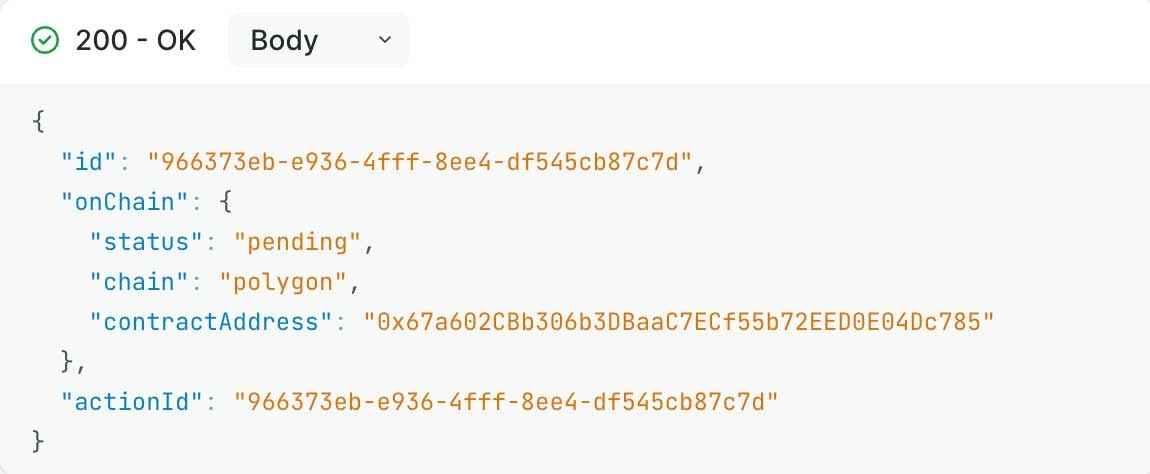
Send button to trigger
the API call.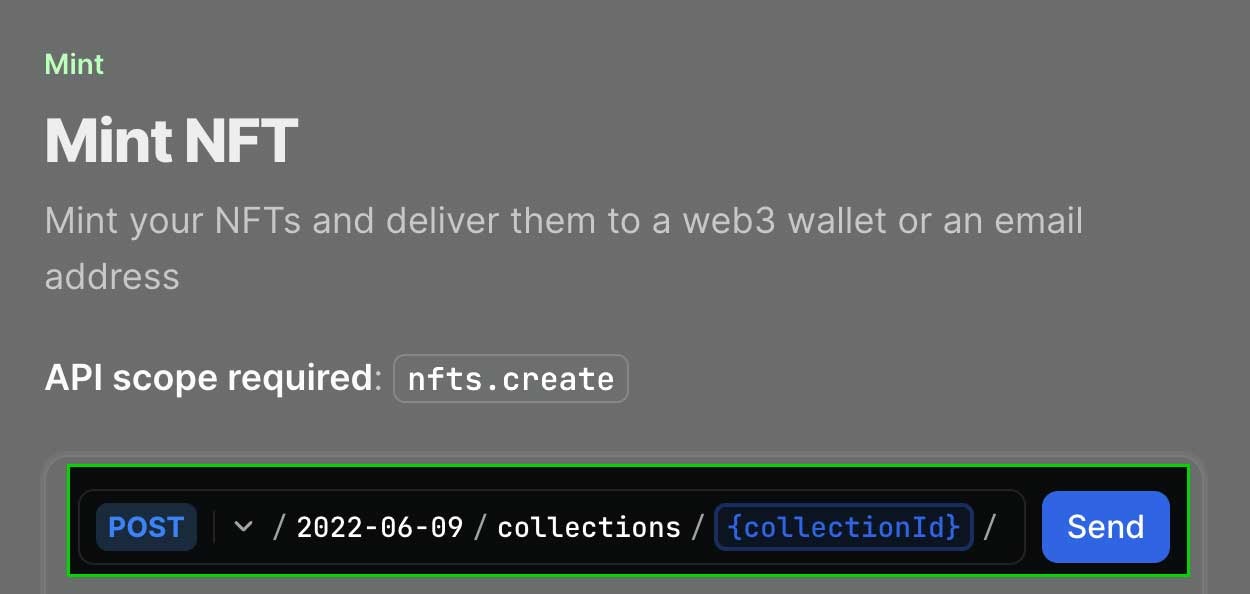
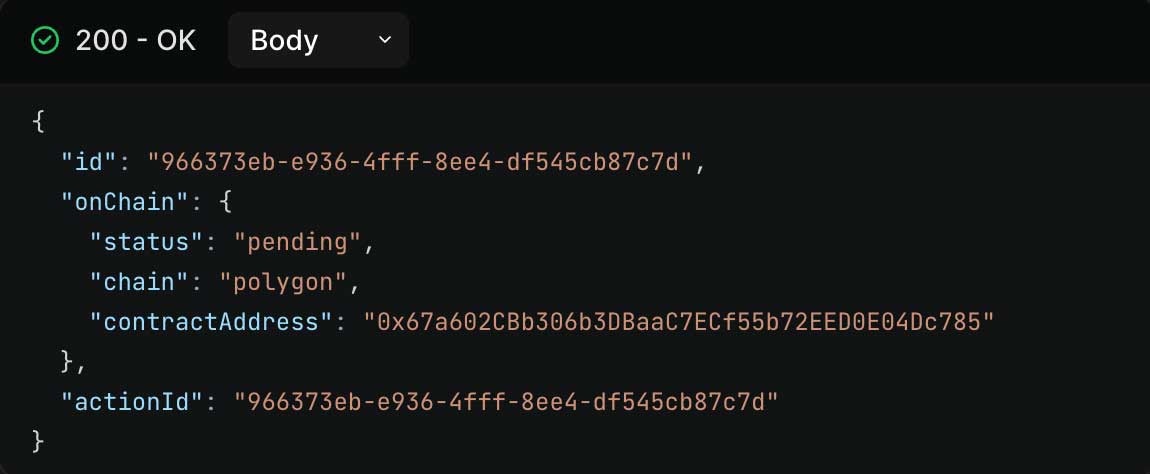
View the NFT in your wallet
If you followed this guide closely you can view the NFT in the staging wallet at https://staging.crossmint.com/user/collection.If you minted directly to a wallet address you can view the NFT in that application. Ensure you are accessing it from a testnet if you used staging.